Overflow Tap Integration: ProPresenter
Last updated: September 24, 2026
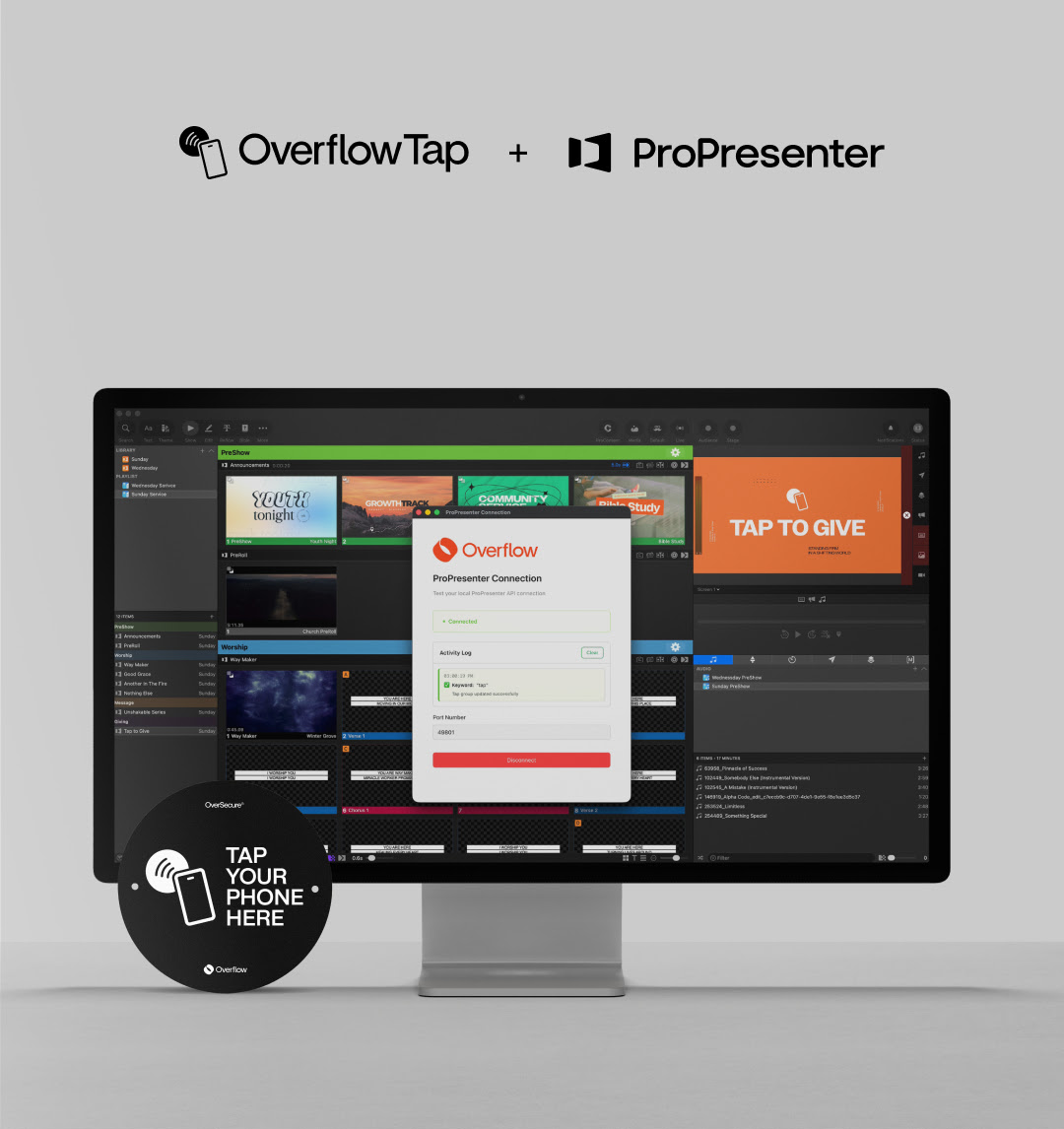
ProPresenter is software used to display slides, lyrics, and media during services. When connected to Overflow Tap, slide notes can trigger Tap experiences automatically as presentations progress, helping experiences update in real time!
Before You Get Started
Before you begin, make sure you have:
👋🏽 Access to the Overflow Dashboard
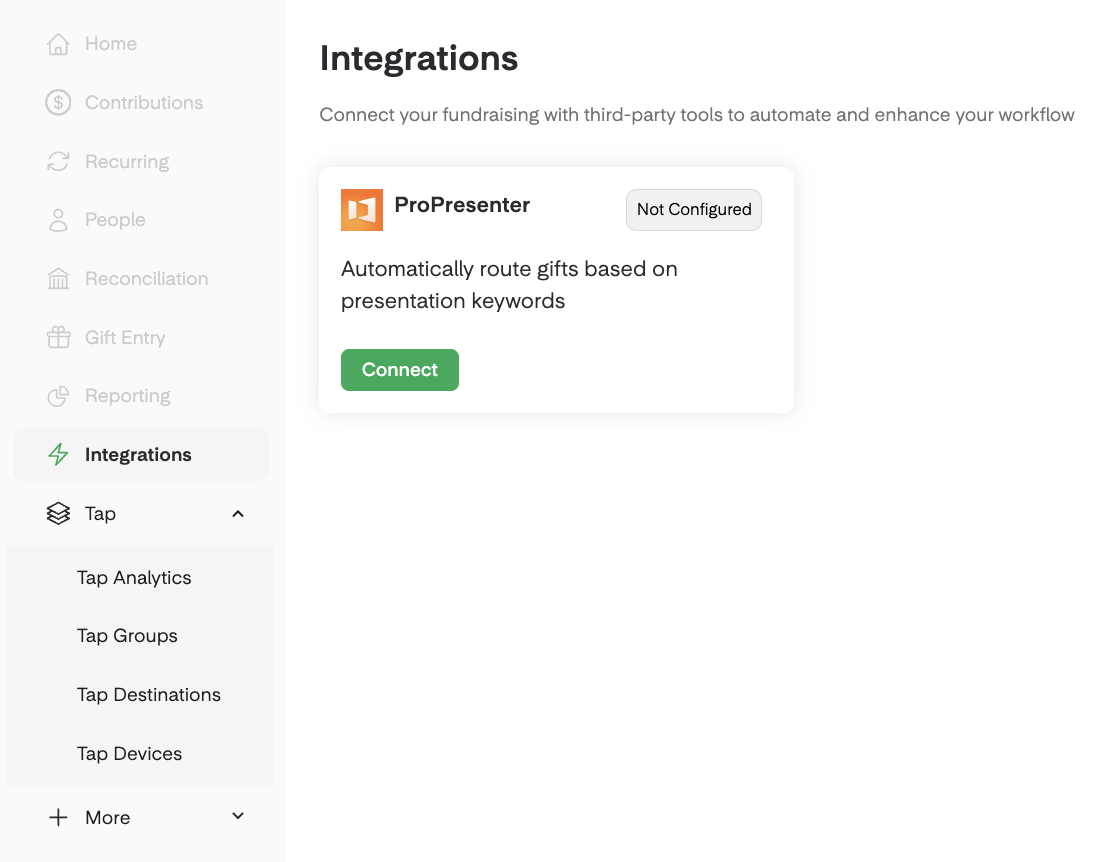
The Organization Admin and Tap Only roles give your team access to the Tap modules and ProPresenter integration.
🤳🏽 Tap devices set up for your organization
📥 The ProPresenter Helper App
The ProPresenter integration relies on a local API that communicates only with software running on the same device.
The Helper App runs on the Mac hosting ProPresenter and securely relays information between ProPresenter and the Dashboard. This design keeps presentation data local while enabling integration with Tap services.
💻 ProPresenter running on your Mac
The ProPresenter Helper App requires an Apple Silicon (M-series chips) Mac. (Currently not supported on Windows or other devices, such as iPads and tablets.)
A beta version is also available for Intel Macs. Please reach out to Support to request access!
Connect ProPresenter to Overflow Tap
This quick, one-time setup allows presentations to seamless interact with your Tap devices.
Step 1: Download the Helper App
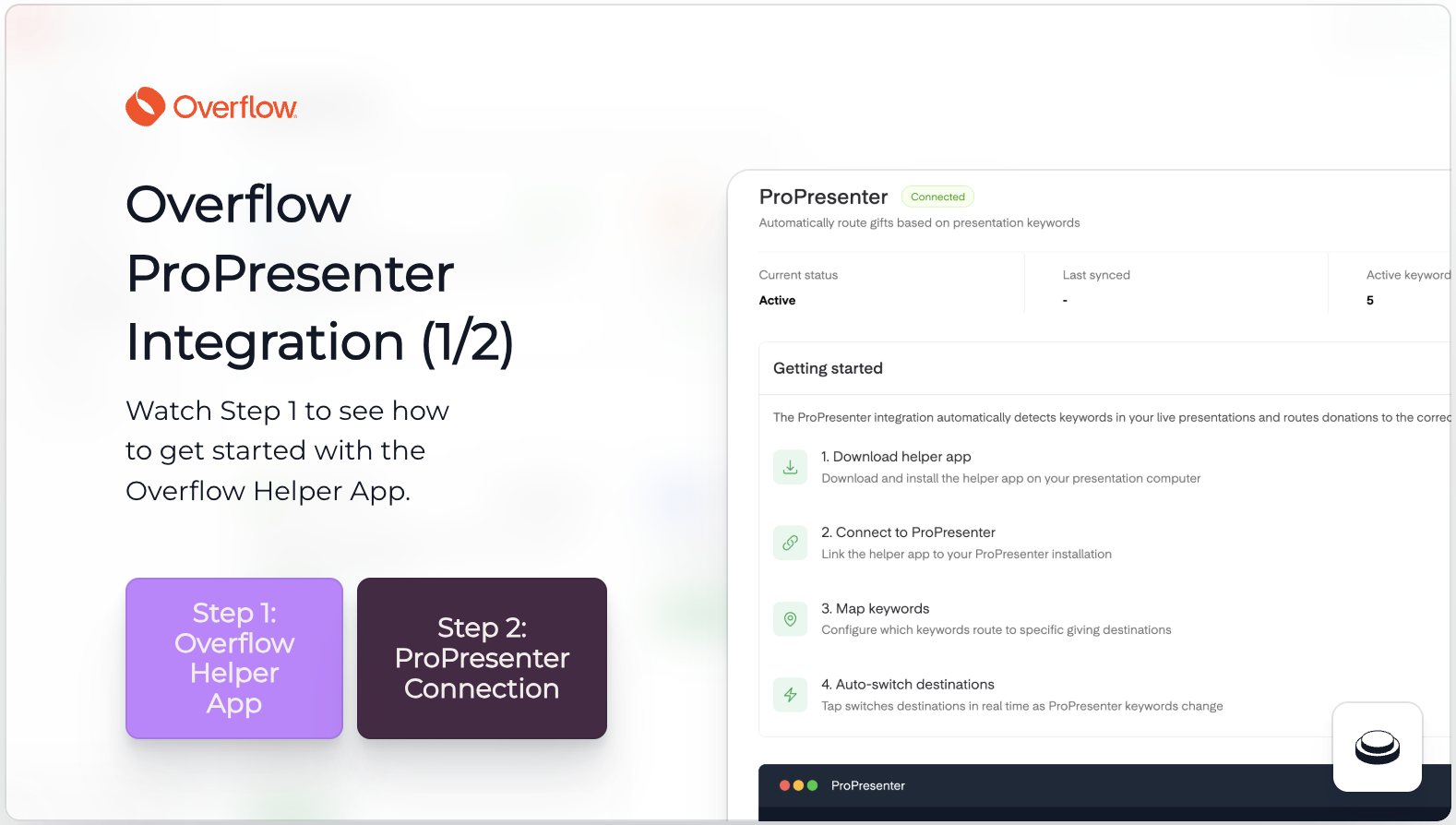
The Helper App connects ProPresenter's local data to your Dashboard, so Tap can respond to slide notes.
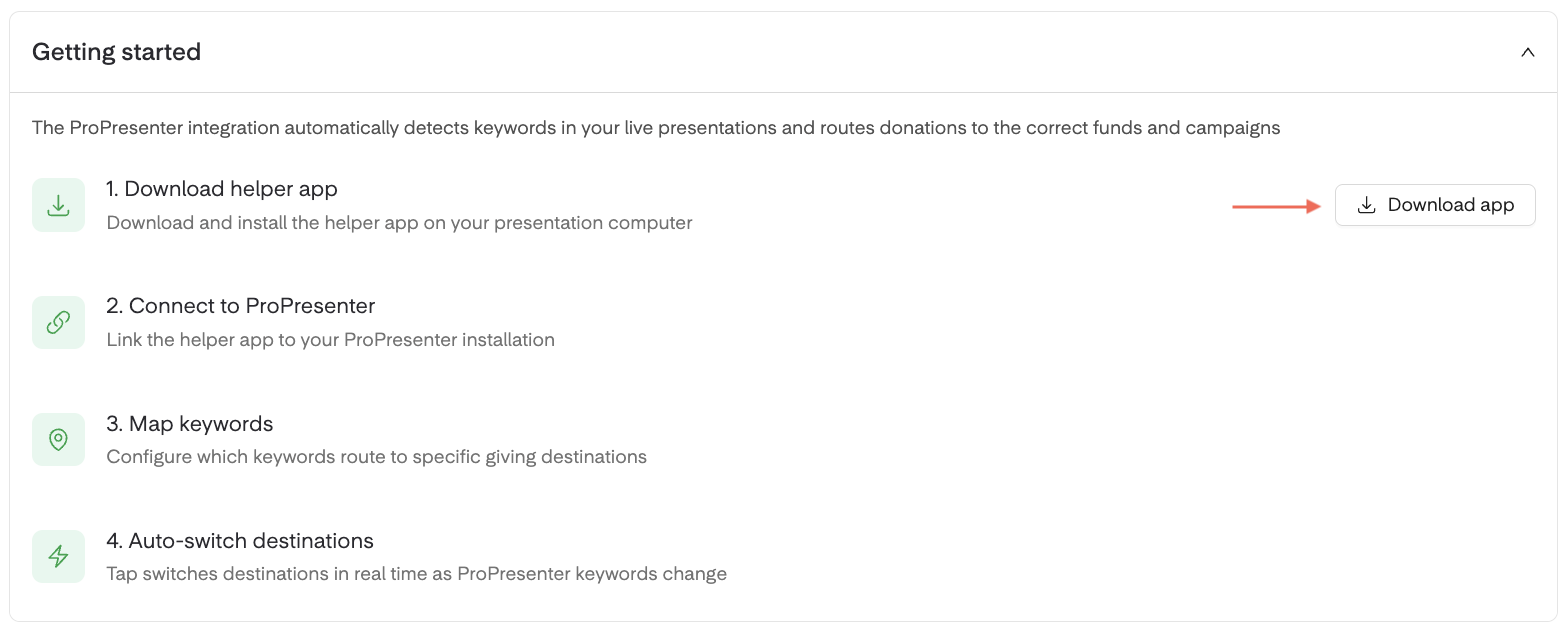
Log in to your Dashboard.
Navigate to the Integrations module.
Select ProPresenter.
Click Download App.
Install the Helper App on the Mac running ProPresenter 📥
Step 2: Enable Network Access to ProPresenter
ProPresenter needs permission to connect with Overflow Tap.
Open ProPresenter.
Go to Settings.
Select Network.
Enable network access.
Copy the Port Number shown. 🔌
Step 3: Connect the Helper App
Open the ProPresenter Helper App.
Paste the Port Number from ProPresenter. 🔌
Click Connect.
Select your organization when prompted.
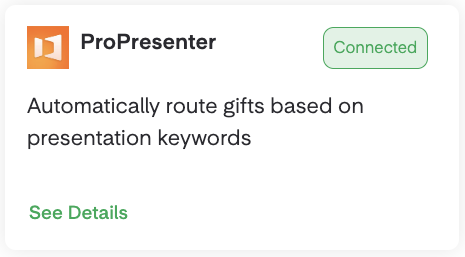
Once enabled, ProPresenter will appear as Connected in your Dashboard.
Set Up Keywords and Destinations
Keywords tell Overflow Tap when to respond, and destinations tell Tap where to send people. Both are required for a smooth experience!
Step 1: Create and Map a Keyword
Log in to your Dashboard.
Navigate to the Integrations module.
Select ProPresenter and go to Keyword Mappings.
Click on ➕ New Keyword.
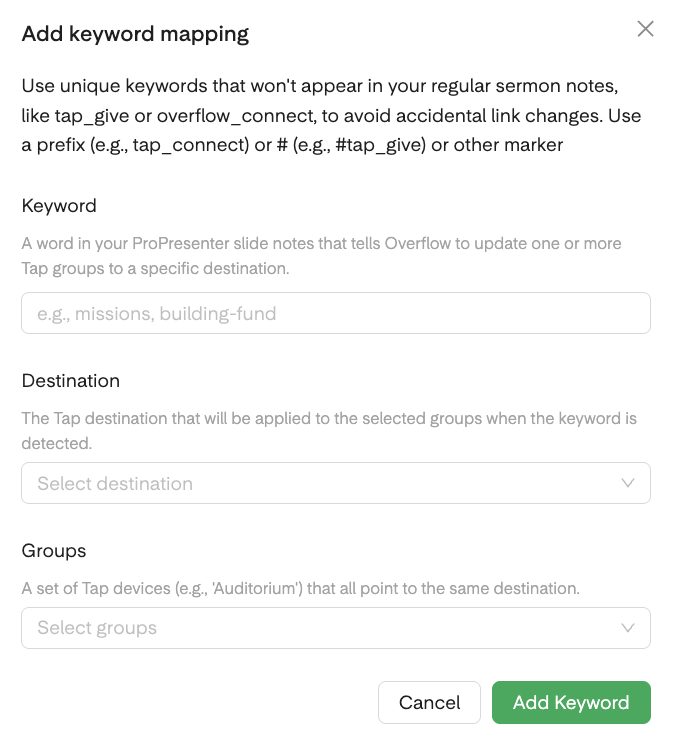
Enter your keyword. 🔑
We recommend using a word/phrase not found in slide notes to avoid accidental triggers.
The keyword must match exactly what you add to slide notes.
Map the keyword to a destination.
Destinations determine what Tap experience launches when a keyword is detected.
🚫 Keywords without a destination won't trigger Tap during your service.
Step 2: Assign Groups and Activate!
Select the Tap Groups the keyword should affect.
Save your keyword.
Turn the keyword on.
✅ A keyword will only work if it is mapped to a destination and turned on.
Only active keywords will trigger Tap during service.
Step 3: Refresh Keywords in the Helper App
This step ensures the Helper App detects newly created keywords and responds during service.
Open the Helper App.
Navigate to the Keywords section.
Refresh the keywords, so the app recognizes the latest mappings.
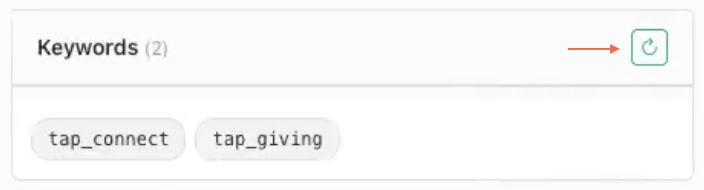
📍 In multi-site environments, each site using the same Dashboard should refresh keywords, so local Helper Apps recognize updates.
Confirm the new keywords appear in the list.
If new keywords don't appear, restart the Helper App and attempt the refresh again.
Add Keywords to Slide Notes
After creating and mapping a keyword:
Open your presentation in ProPresenter.
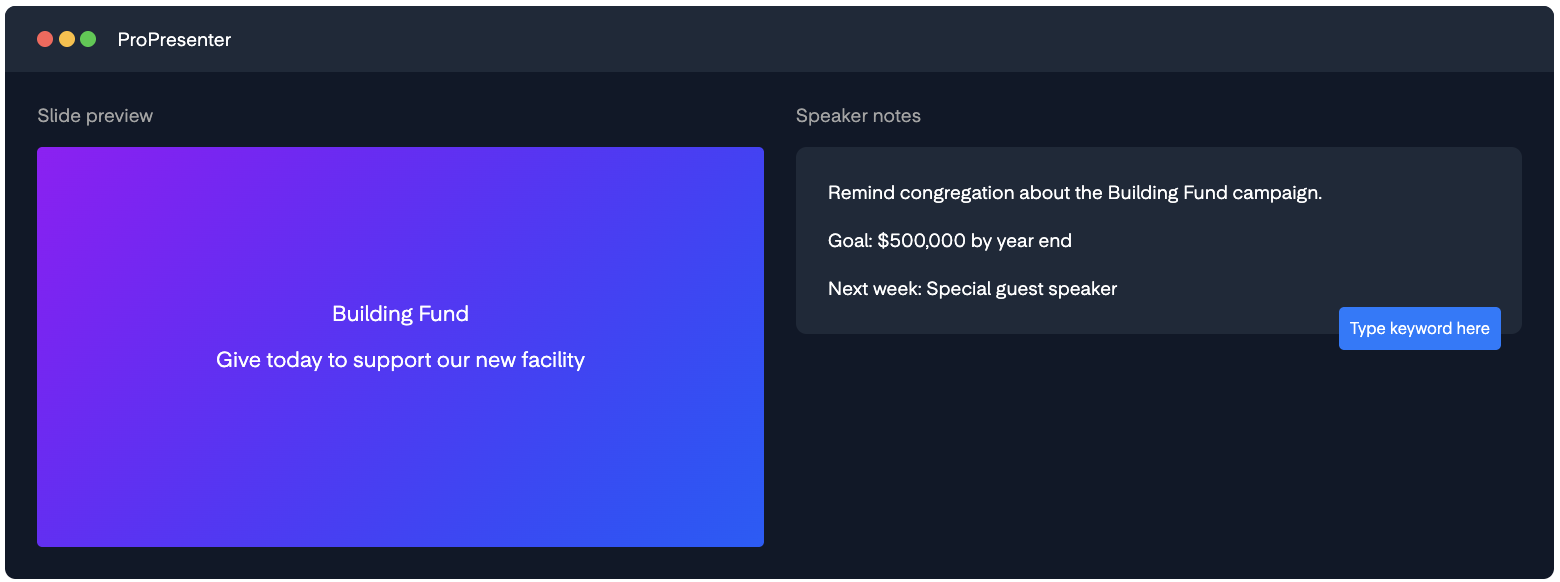
Select the slide where you want the Tap experience to change.
Add the keyword to the slide notes. 🔑
Save your presentation.
As the presentation runs, Tap listens for keywords in slide notes and responds automatically!
Activity Log (Live Monitoring)
The Activity Log in the Helper App provides a live feed of activity between the Dashboard and ProPresenter. It helps partners confirm that keywords and destination updates are processing correctly.
The Activity Log displays:
🟢 Confirmations when a Tap group updates successfully
Which keyword triggered the update
The timestamp of the event
🔴 Error messages if issues occur (e.g., network disconnection or server communication failure)
If You See a Red Tile
Verify network connectivity on the Mac running ProPresenter
Confirm the Helper App remains connected
Retry the operation after reconnecting
Check the Dashboard to ensure the keyword mapping is active
Troubleshooting
Helper App Does Not Update
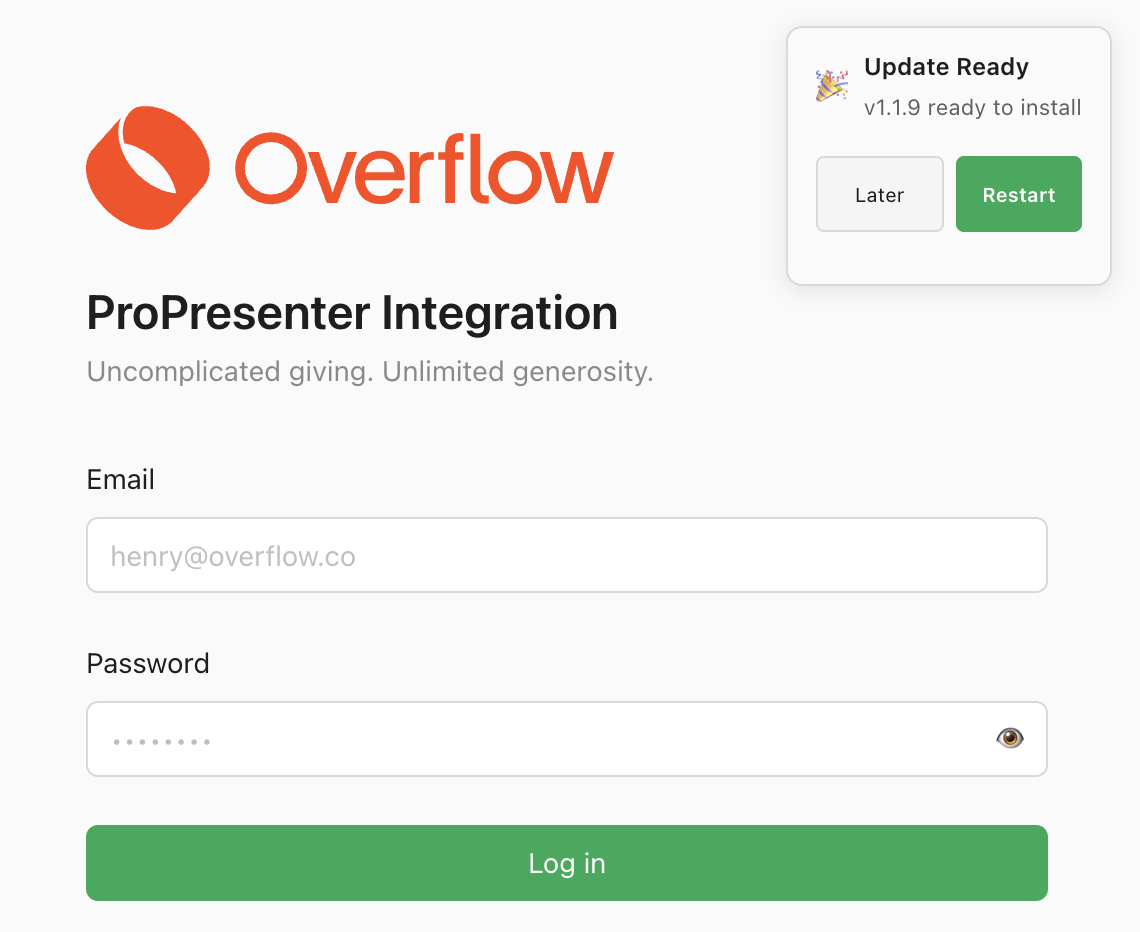
Fully remove the current Helper App from your Mac
Redownload the Helper App from the Integrations module
Move the downloaded file to Applications, and delete the copy from the Downloads folder
Open the app from Applications, and click Restart to install the update.
Locked Account Error
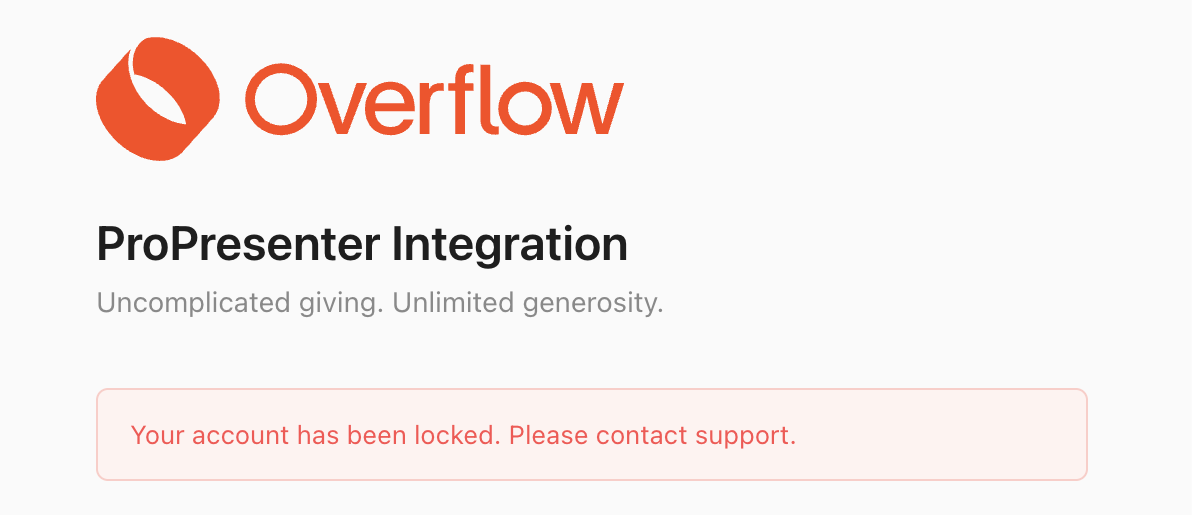
The Helper App uses the same login credentials as your Dashboard, which doesn't support Google sign-in.
To resolve this, you'll need to set a password for your Dashboard account. (Click Forgot Your Password? on the Dashboard login page.)
ProPresenter Does Not Connect
Confirm the Helper App is running on the same Mac as ProPresenter
Verify network access is enabled in ProPresenter settings
Check that the port number is copied correctly
Restart the Helper App and attempt to connect again
Keywords Do Not Appear After Refresh
Confirm the Dashboard contains active keyword mappings
Ensure the Helper App is connected
Restart the Helper App and refresh again
In multi-site setups, verify each site's Helper App has refreshed
Keywords Do Not Trigger Tap
Test with a simple keyword not found in other slide notes
Confirm the keyword matches exactly in slide notes
Verify the keyword is mapped to a destination
Ensure the keyword is turned on
Refresh keywords in the Helper App
Tap Experiences Do Not Update
Confirm the Helper App is connected
Verify ProPresenter is active in the Dashboard
Test network connectivity on the Mac running ProPresenter
Reconnect the Helper App and test again
Best Practices
Use keywords that aren’t part of everyday slide notes to prevent accidental triggers.
Refresh keywords in the Helper App after updates, so it recognizes the latest mappings.
Organize keywords and destinations clearly, especially in multi-site setups.
Disconnect the Helper App after service if you prefer to limit ongoing detection.
Reuse keywords across services and presentations when needed.
Monitor the Activity Log for live confirmation and error details.
Test before service to confirm everything functions as expected!
FAQs
What is a Keyword, and How Does It Work?
🔑 A keyword is a word (or phrase) added to slide notes in ProPresenter. Tap detects the keyword and launches the mapped experience automatically.
Do I Need to Refresh Keywords Every Time I Make a Change?
Yes! After adding or updating keywords in the Dashboard, refresh the Keywords section in the Helper App, so it recognizes the latest mappings.
Why is the Helper App Required?
The Helper App bridges communication between ProPresenter’s local API and the Dashboard. Without it, keywords and Tap updates cannot function.
What Does a Green Tile in the Activity Log Mean?
🟢 A green tile confirms successful activity, such as a group update triggered by a keyword.
What does a Red Tile in the Activity Log Mean?
🔴 A red tile indicates an issue, such as network disconnection or server communication failure. We recommend checking connectivity and retrying the operation.
Can I Use the Same Keyword in Multiple Presentations?
Absolutely! Keywords can be reused across multiple presentations and services.
Can I Turn Keywords Off?
Yes! Inactive keywords will have no effect during your service.