Confirm Receipt of Stock Gifts. Brokerage Clients
Last updated: September 9, 2026
Congratulations! Your organization just received a gift from a very generous donor... now what?
Here are the three quick steps for confirming your donation. (Don't worry - we'll break it down in more detail below).
1. Log in to your Overflow Dashboard
2. Confirm Gift Receipt*
3. Send Acknowledgment Letter
*Note that you won't be able to confirm a gift until more than 24 hours after the gift was initiated.
The process of acknowledging donations through the Overflow platform is different depending on if your organization chose the brokerage or liquidation payout method. This article will detail the process for brokerage clients. If you're unsure which option your organization chose, please email support@overflow.co. Or, click this link to learn the differences and similarities between the two payout methods: Brokerage vs Liquidation. Which option is best for my nonprofit?
Visual learner? Watch the process on video:
TRIGGER EVENT:
When a donor initiates a stock gift through the Overflow platform, you will receive an email that a gift is on its way to your organization. It usually takes anywhere from 1 day to 2 weeks for a stock gift to fully process and transfer out of the donor's brokerage account. Because Overflow does not have visibility into your brokerage account, you won't receive an alert from Overflow when the shares have arrived. We recommend checking your brokerage account every two days after the email from the Overflow team. Once you see that the shares have hit your brokerage account, you're ready to confirm receipt of the stock gift.
STEP BY STEP:
1) Log in to your Dashboard.
2) You can either use the Task bar on the home page or navigate to the Contributions tab to confirm the transaction.
3) Find the gift you wish to confirm. If you don't see the gift immediately within the Contributions tab, you can find the transaction you wish to confirm by searching by name in the Search bar or navigating to "Pending" transactions. Pending stock transactions are those that have not been confirmed as received into your brokerage account.
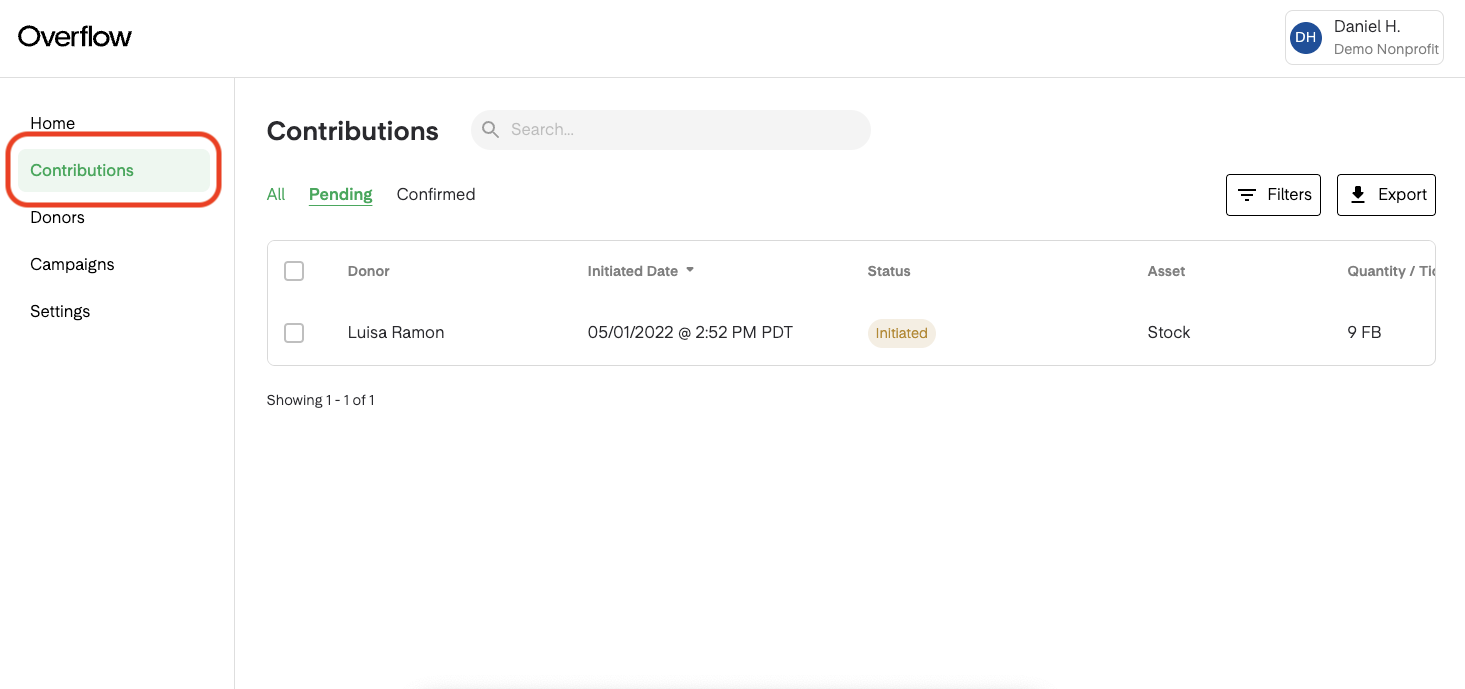
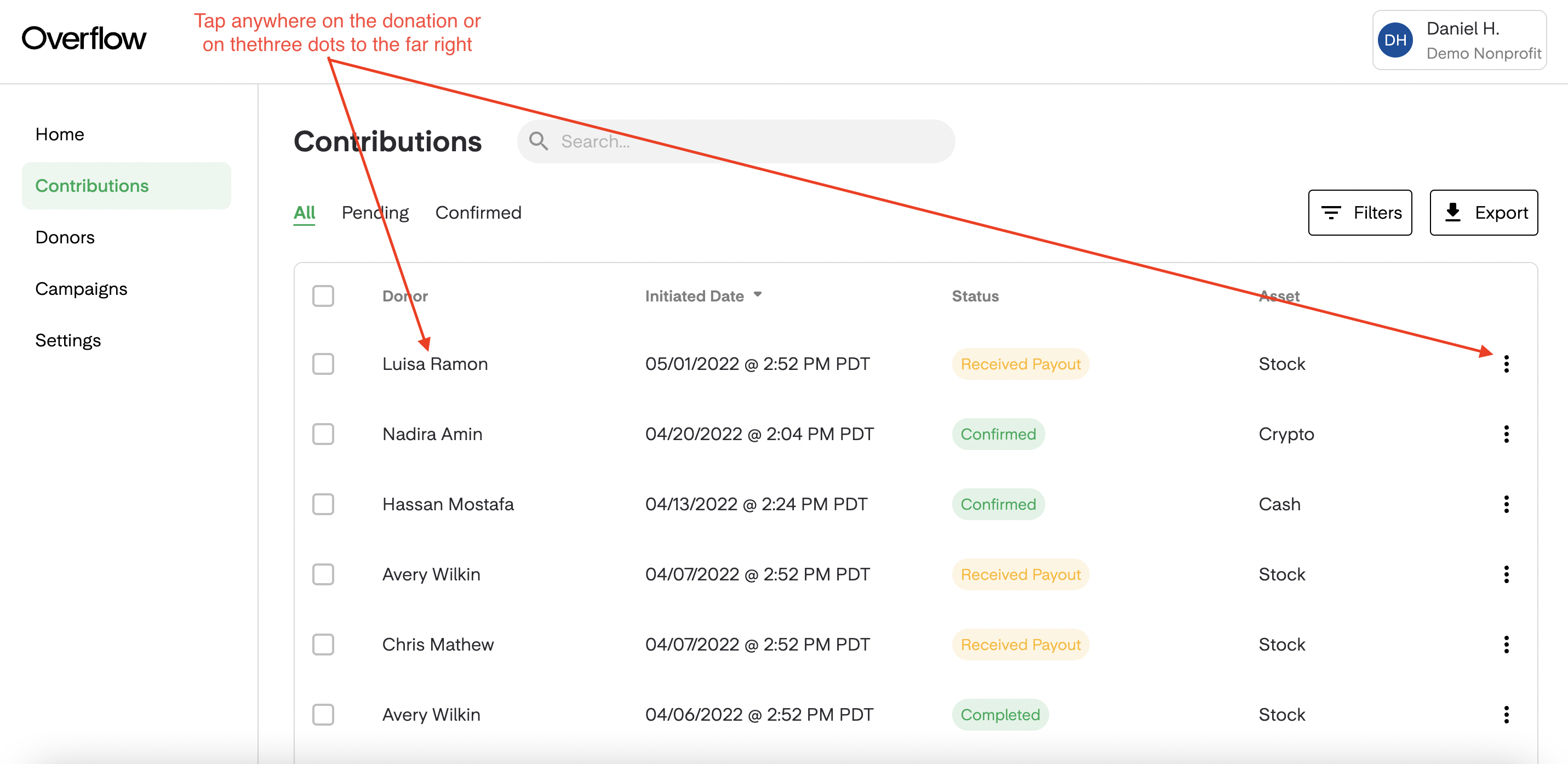
4) Once you find the transaction, click anywhere on the contribution item to open the gift information and follow the green button prompt to "Confirm Stock Receipt". Or, using the ellipsis on the far right of the gift, click "Confirm Shares".
5) Enter the date on which the transaction was received. The receipt date you choose is the date that will populate within the donor's acknowledgment letter. It is important that you only select this date once you have confirmed the transaction has been received into your brokerage account.
-
- ⚠️ ⚠️ Be careful: The date you choose has to exactly match the day the stock arrived in your brokerage account in order for the donor to have the correct information to file for their charitable tax deduction.
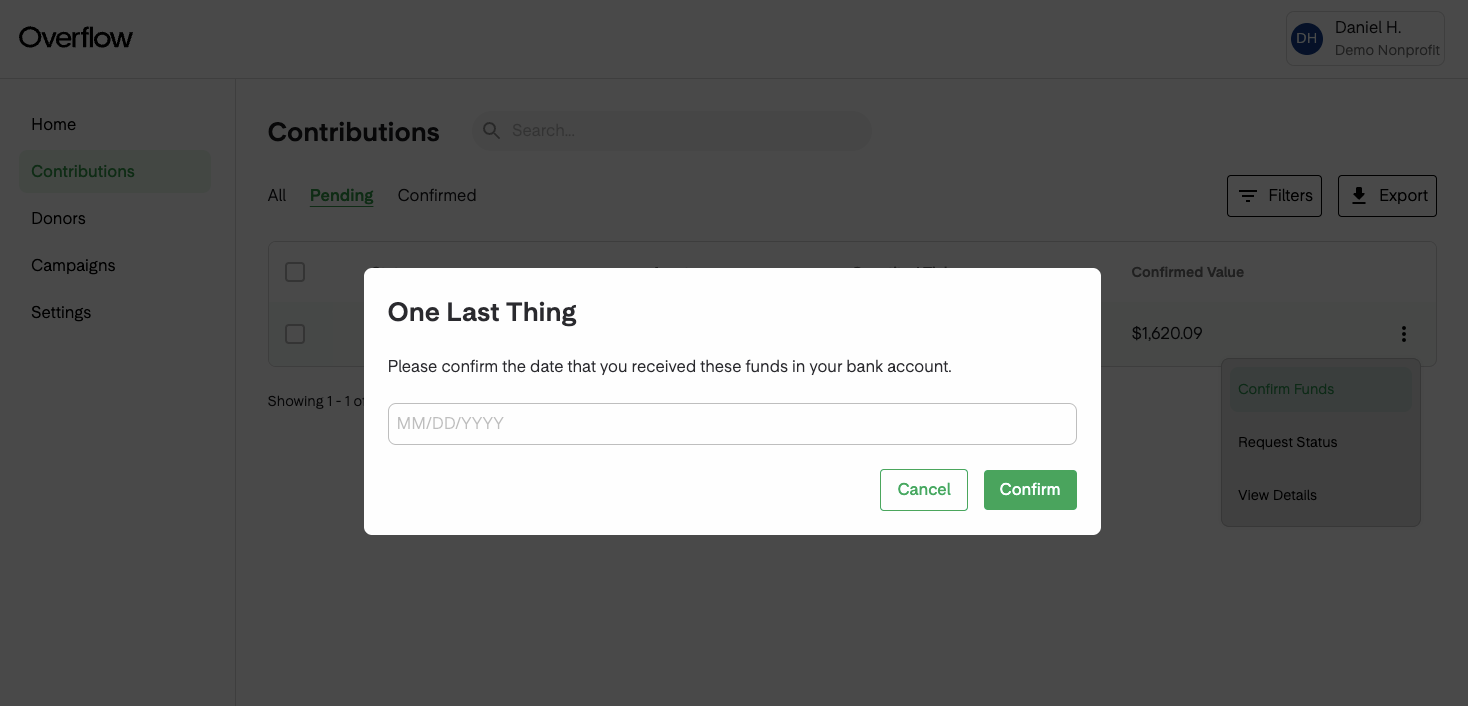
6) Click "Confirm". This will update the status of the gift to Contribution Received and will record the date you chose in the Contribution Received Date column. This also sets the Estimated Value of the gift as the high-low average of the stock on that date. The donation can now be found within the Confirmed tab. Note that the donor will receive an email letting them know the donation has been confirmed as received.
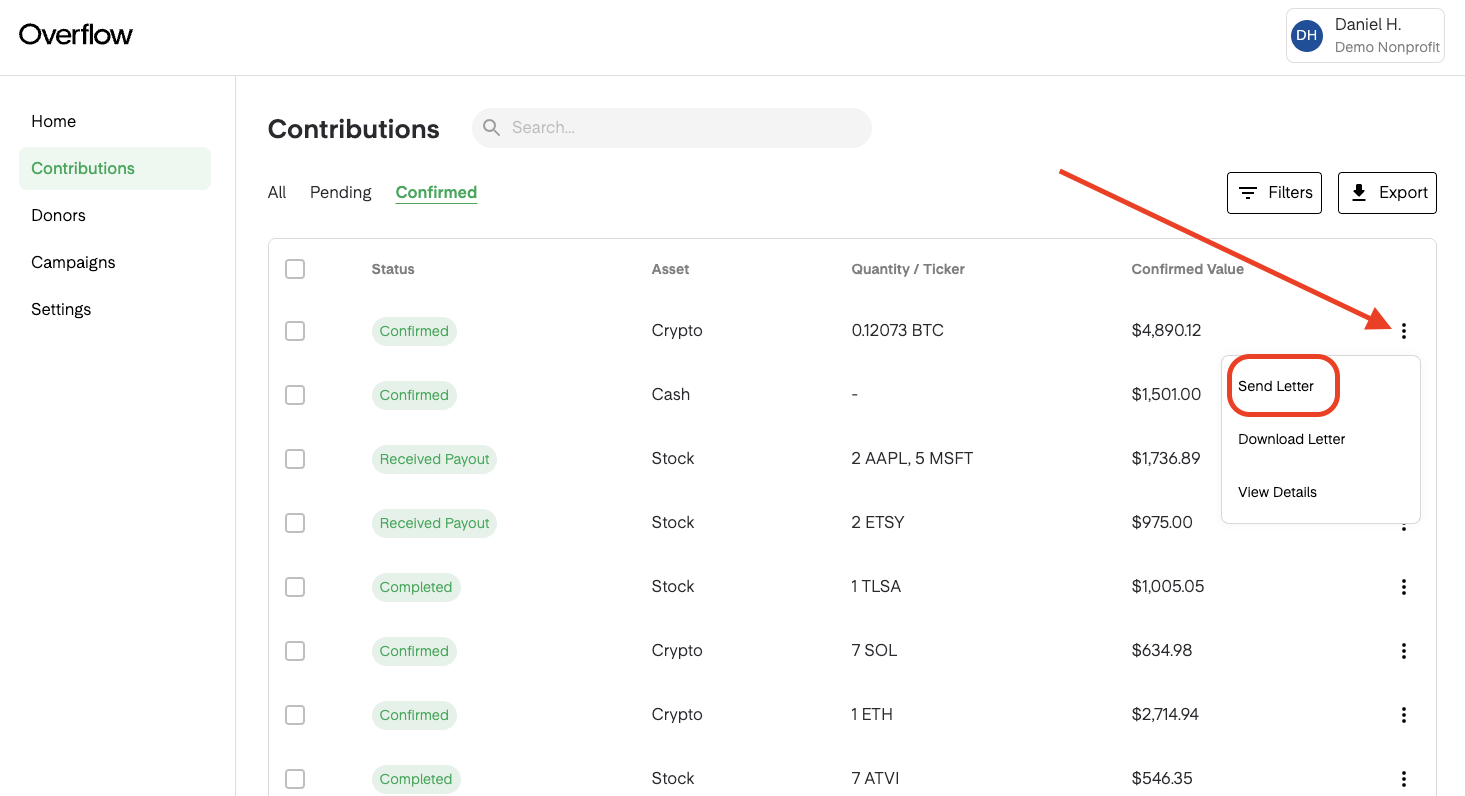
7) Send the automatically-generated acknowledgment letter. In the contribution details window, you'll now see the option to "Send Acknowledgment Letter". Click the green button to send the letter immediately from the Overflow platform. You also have the option to exit out of the contribution details window and, using the ellipsis on the far right, either send the letter or download it as a PDF to send from your own email alias.
- ⚠️ ⚠️ We recommend downloading every acknowledgment letter and saving it to a specified folder EVEN IF you send the letters directly from your Dashboard.
Related Articles
IRS Requirement: Charitable Acknowledgement Letter
Customize Your Acknowledgment Letter. A Quick How-to
Confirm Receipt of Stock Gifts. Liquidation Clients