CRM Integration: Pushpay (CCB) ChMS
Last updated: September 9, 2026
With Overflow’s Pushpay ChMS integration, all confirmed donor and transaction data is automatically synced to your ChMS account, making it easy to manage and report on all giving data in one centralized place.
This integration is included at no additional cost and can be enabled directly in your Overflow Dashboard.
🔧 Step-by-Step Setup
Step 1: Create an API User in Pushpay ChMS
Log into your Pushpay ChMS Admin Console.
Click the gear icon (top right corner), then navigate to the API section.
Click “Add New API User”, and complete the required fields.
Navigate to the Services tab and check the box labeled “Select All”.
-
Save and record the following:
API Username
API Password
API URL

You’ll need these when configuring the integration in Overflow.
Step 2: Connect Pushpay ChMS in Overflow
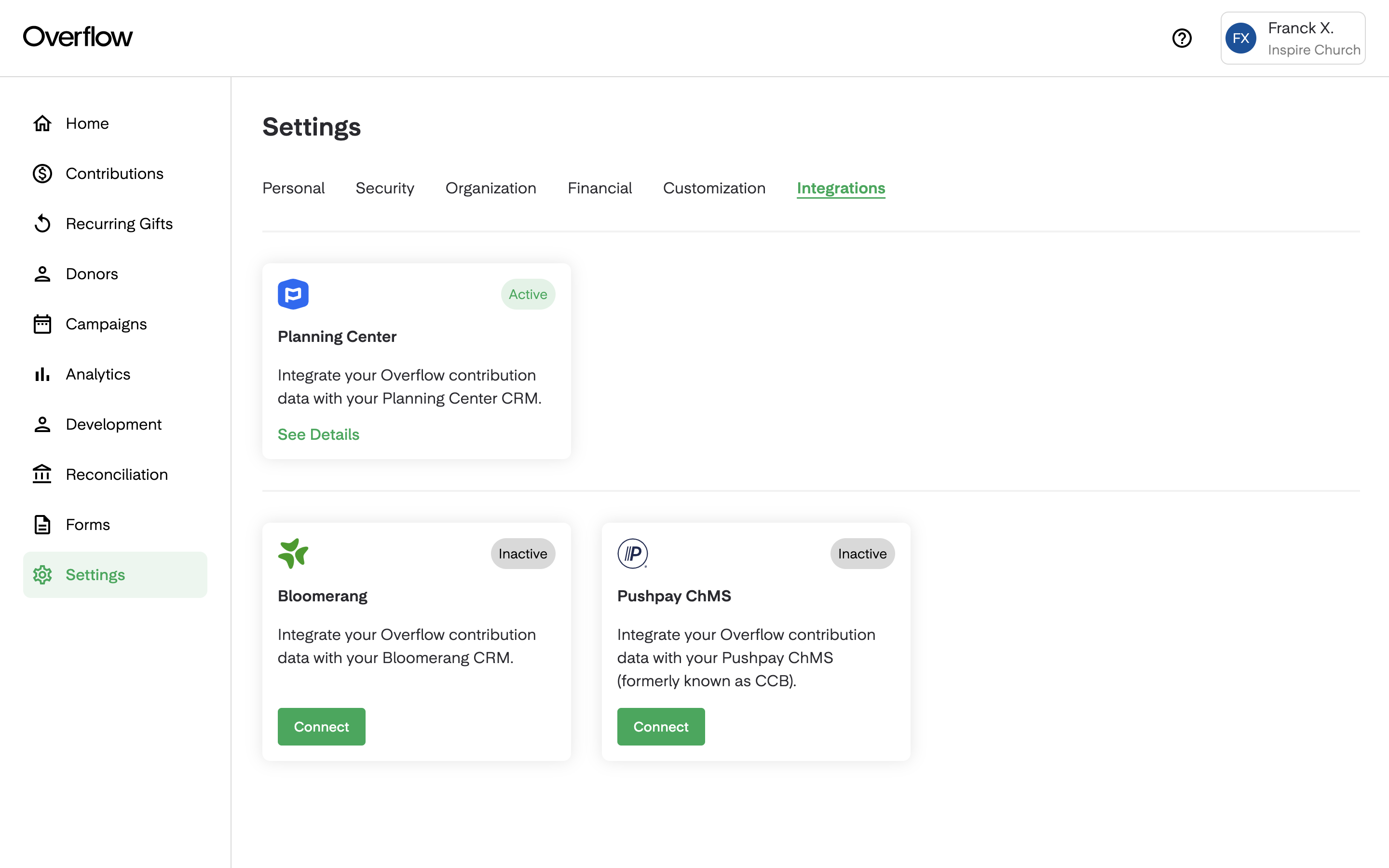
In your Overflow Dashboard, go to Settings → Integrations.
Locate Pushpay ChMS and click “Connect”.
Enter the API Username, Password, and URL collected in Step 1.
Click Save to complete the connection.
Step 3: Set Default Mapping
You’ll now be prompted to define how Overflow gifts are routed:
Default Campus: Select the campus that Overflow gifts should be associated with.
Default Chart of Accounts (Fund): Choose a default sub-campaign/fund where gifts should be applied if a specific mapping doesn’t exist.
💡 Custom mappings can be configured later per campaign or fund.
🔄 Sync Logic and Behavior
✅ What Gets Synced?
Gifts: All confirmed Overflow donations (credit, debit, ACH, stock, crypto).
Donor Info: Name, email, phone, and address.
Transaction Info: Amount, payment method, asset type (e.g., stock/coin name and quantity).
🧠 Matching Logic
Donor Matching: Overflow will auto-match gifts to existing donors in CCB using name, email, or phone.
New Donors: If no match is found, a new individual profile will be created in CCB.
Anonymous Donors: Anonymous gifts will sync under a generic “Anonymous Donor” profile without exposing personal info.
🛠 Troubleshooting & Permissions
🔐 Required API Permissions
To ensure the integration functions properly, the API user must have access to:
| Permission | Description |
|---|---|
campus_list |
Read campuses |
transaction_detail_type_list |
Read chart of accounts (funds) |
create_individual |
Create donor profiles |
individual_search |
Search existing donors |
online_giving_insert_gift |
Create/sync gifts |
🧪 Troubleshooting
| Issue | Resolution |
|---|---|
| Gifts not syncing | Confirm credentials and permissions; check for API connection in Overflow. |
| Incorrect fund/campus mapping | Review default mappings and adjust as needed in the Overflow Dashboard. |
| Duplicate donors created | Ensure donor data (email/phone) is consistent between Overflow and Pushpay ChMS. |
🙋♀️ Still Have Questions?
Our Support Team is happy to help you with setup, mapping, or sync troubleshooting.