CRM Integration: Planning Center Online (PCO)
Last updated: October 21, 2026
Capture your Overflow transaction and donor data in your Planning Center Online (PCO) account to see all giving data in one place.
Overview
Once you’ve connected Overflow’s PCO integration, all future contribution and giver information will automatically sync from your Overflow Dashboard to your PCO account. This eliminates the need for manually exporting and uploading donation details, making it easier for you to engage with the individuals giving to your church.
How to Get Started
In the Dashboard, navigate to the Integrations module in the left sidebar. (Access to this module is limited to users with the Editor role. If you cannot see it, please ask an Organization Admin to review your role and permissions.)
Click on the Planning Center tile, then press Connect.
Once the side panel opens, click Connect to PCO.
Once redirected to PCO's login page, enter your PCO account credentials and select Allow. You'll be automatically be redirected to the Dashboard afterwards.
Make sure that the PCO Giving module is turned on and that the person authenticating the integration is a full PCO admin.
To enable the PCO Giving module, all onboarding steps must be completed in Planning Center, including connecting to a Stripe account. (This allows Overflow to sync donations to PCO.)

You will then have the option to choose between a few configurations:
One-Way Sync: This is the default option.
❌ Note: Changes to a donor’s profile in PCO will not be reflected in their Donor Profile in Overflow.
Manual Entry: If you will be manually entering physical cash and check donations in Overflow and would like those donations to appear in PCO, please toggle this option on.
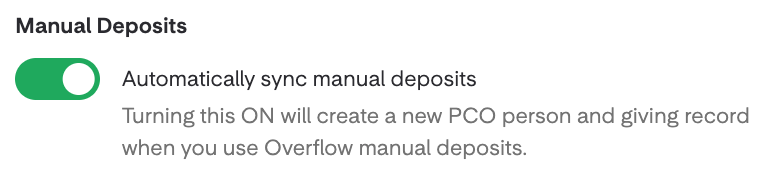
The PCO integration tile should now show as Active. You're all set! 🎉
Syncing Explained
When Contributions Sync
Once a contribution is confirmed within your Dashboard (which happens immediately for cash and crypto, and when you confirm receipt of a stock gift), the donation and donor details will now automatically sync to your PCO account.
Cash and credit contributions will be added within the proper transaction category.
In-Kind Contributions (Non-Cash): The payment source will reflect the asset (e.g., “Overflow Donor Advised Fund” or “Overflow Stock”) when synced. Each donation will also be placed in its own batch.
Eligible Fields for Syncing
Contribution Value
Fund
✅ If a campaign in Overflow exactly matches a fund name in PCO, the donation will be linked to that fund.
🆕 If the campaign name doesn't already exist, a new campaign will be created and associated with the contribution.
For a specific request to map an Overflow fund to a PCO fund, contact Support with the PCO Fund ID. In Planning Center Online, open the fund and use the numeric ID in the URL, which has this format:
https://giving.planningcenteronline.com/funds/{fund_id}/edit. Support can complete the mapping after reviewing the request. This is separate from automatic linking when campaign and fund names exactly match.
Donor's First / Last Name & Email Address
A donor’s email address is used to check if they already exist in PCO. If they do, their donation will be matched to their existing profile.
If they don't, a new PCO profile will be created.
Failed Syncs
Common Causes
Here are 5 key changes in PCO that might cause errors when syncing contribution and donor information from Overflow:
Removing a Fund in PCO
If a fund existed previously in both Overflow and PCO, and is later removed from PCO, it will cause sync issues for any contributions associated with that fund.
🛠 To prevent this: Make sure the Overflow Default Fund is active in PCO. This fund will catch any contributions without an associated fund and allow them to still sync.
Merging or Splitting Donor Records in PCO
If you merge or split a donor record in PCO, and that donor also exists in Overflow, their contribution information may no longer sync to PCO because the donor’s PCO Donor ID changes.
🛠 To fix a changed donor ID: Contact Support with the donor's Overflow Donor ID and updated PCO Donor ID.
To clean up confirmed duplicates across both platforms: First verify that the PCO records genuinely represent the same person, then merge those donor records in PCO. Send Support the list of PCO profiles that were merged so Support can handle the corresponding Overflow profile merge. A PCO merge does not automatically merge the Overflow profiles.
Giving Module Not Turned On in PCO
Donor Email Issues
If a donor’s email address has a typo, is invalid (e.g., @gmai.com, without the "L"), or includes an unsupported domain (e.g., duck.com), the sync may fail.
🛠 To fix this: Please ask the donor to use an alternate email address and update their Donor Profile with the new email.
Locations-model Campus Mapping
For organizations using the Locations model, a contribution associated with an Overflow Location may fail to sync when no corresponding PCO Campus mapping exists. This is one possible cause of a failed sync, not a diagnosis for every failed contribution.
🛠 To fix this: Make sure the matching Campus exists in PCO and provide its Campus ID to Support. Support must complete the location-to-campus mapping and can then reconfigure and resync affected contributions. Customers cannot perform the support-side mapping themselves.
API Outages and Updates in PCO
🔄 PCO's API often experiences brief outages, which can temporarily affect our integration. When this happens, our system automatically retries any failed syncs within 48 hours to ensure no donations are missed.
Updates to PCO's API can also cause temporary disruptions to donation syncing. Our Engineering team actively monitors these changes and works quickly to ensure our integration stays up-to-date and everything continues to sync smoothly!
Checking For Failed Syncs
Go to the Integrations module. This module is available to users with the Editor role. If you cannot see it, ask an organization administrator to review your role and module access.
Click on See Details in the Planning Center tile.
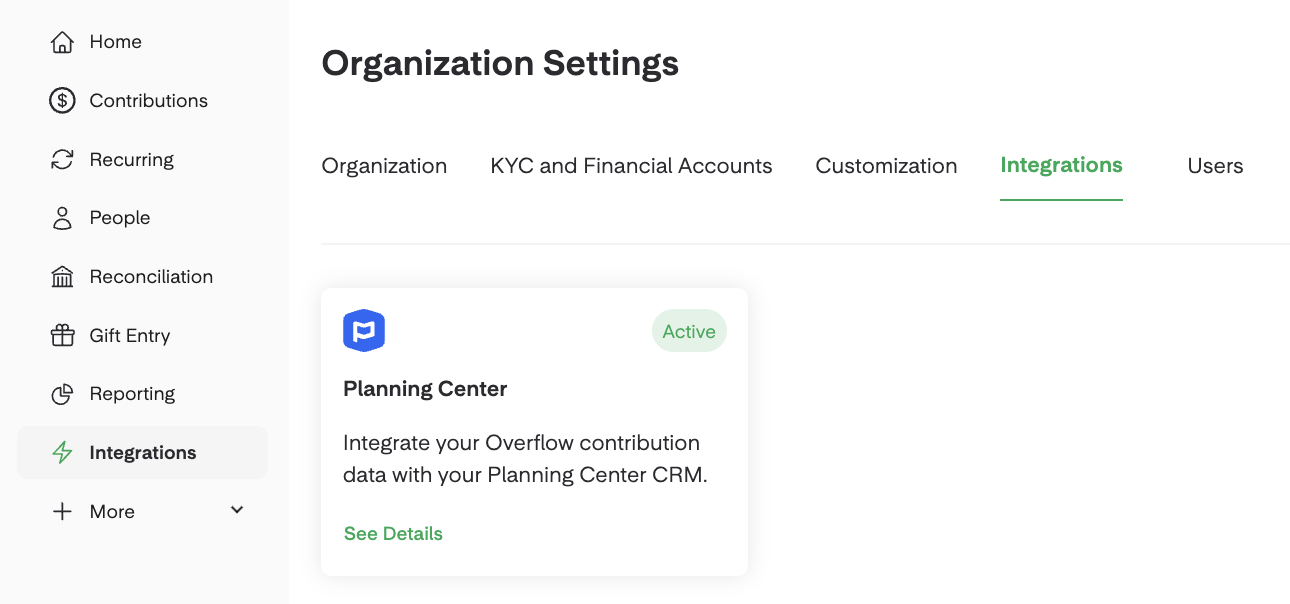
Here, you may see a notification at the top about a failed sync.
See this notification? Simply reach out to us at 📧 support@overflow.co.
We’ll help identify the issue, reinitiate the sync, and let you know if anything else is needed on your end. We’re here to get you back on track!
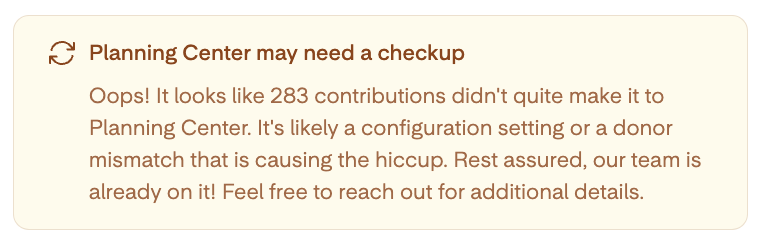
Important: Failed Syncs tracks donations received after the integration was connected, including when it was only partially connected. Gifts received before connection will not appear in this list. If you need earlier gifts added, contact Support for a review and possible manual backfill rather than trying to retry them from Failed Syncs.
If a confirmed Overflow contribution is missing from PCO and there is no Failed Syncs entry or visible error, contact Support with the contribution and timing details. Support can investigate the integration record and may arrange a manual push when appropriate; this is not a customer-run action and is not guaranteed for every missing contribution.
FAQs
Is There an Extra Cost Associated with This Integration?
Nope! The PCO integration is already included with your Overflow subscription.
How Are Cash Donations Synced in the PCO Integration?
Each donation synced to Planning Center appears as an individual batch.
🗂 While donations processed together may share the same batch date, they are tracked separately in PCO. This ensures accurate reporting and accounting for each donor’s gift.
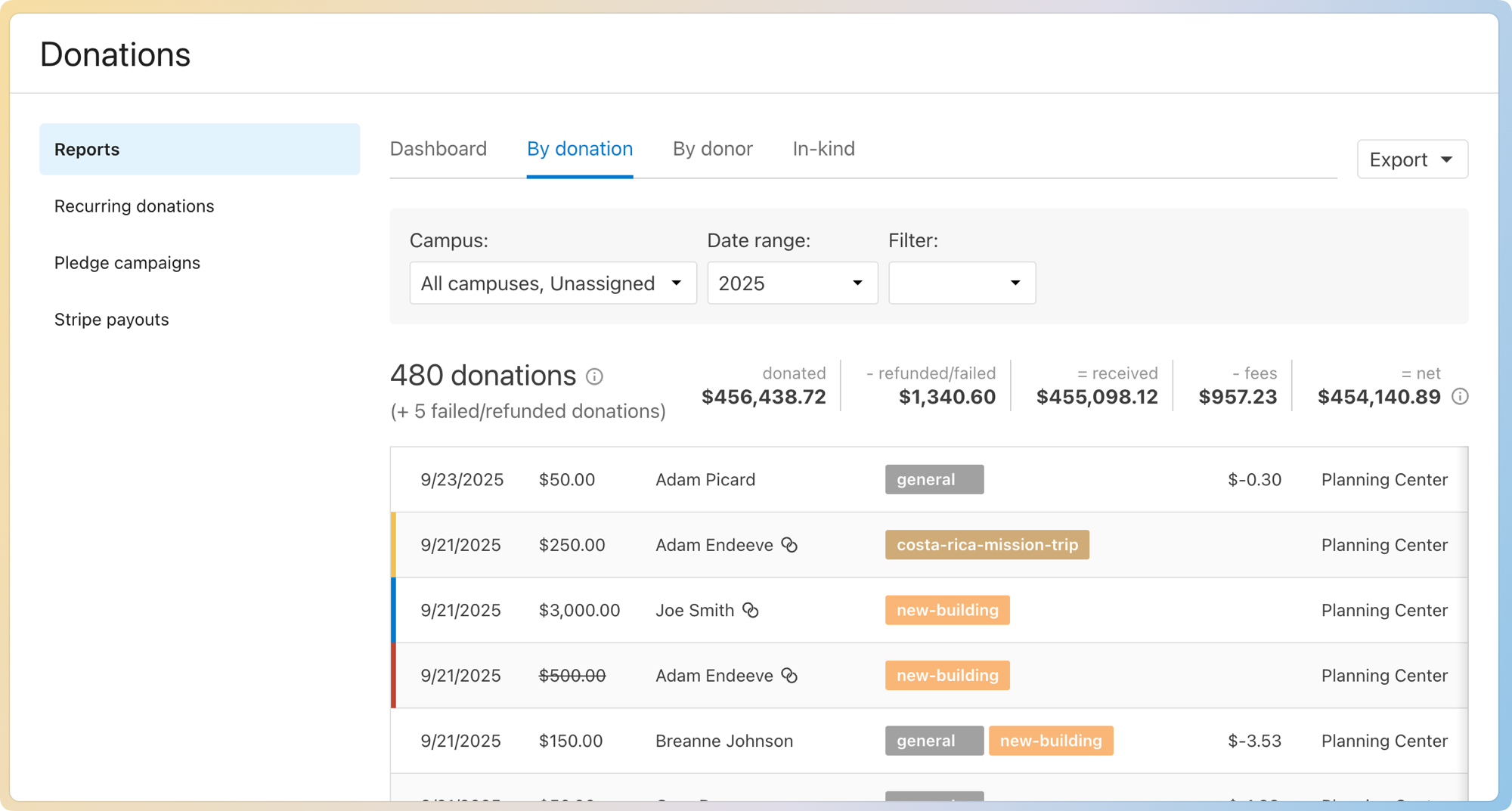
(Source: PCO Giving: Reports by Donation)
How Are Noncash Donations Synced in the PCO Integration?
When noncash donations sync to PCO, they will show the Contribution Received date, which reflects when the gift is confirmed in Overflow. You'll also see the payment source listed as either “Overflow Donor Advised Fund” or “Overflow Stock.” 🏷
🗂 Stock, Crypto, and DAF: Each noncash donation received in Overflow will appear in a separate batch under the In-Kind Donations tab.
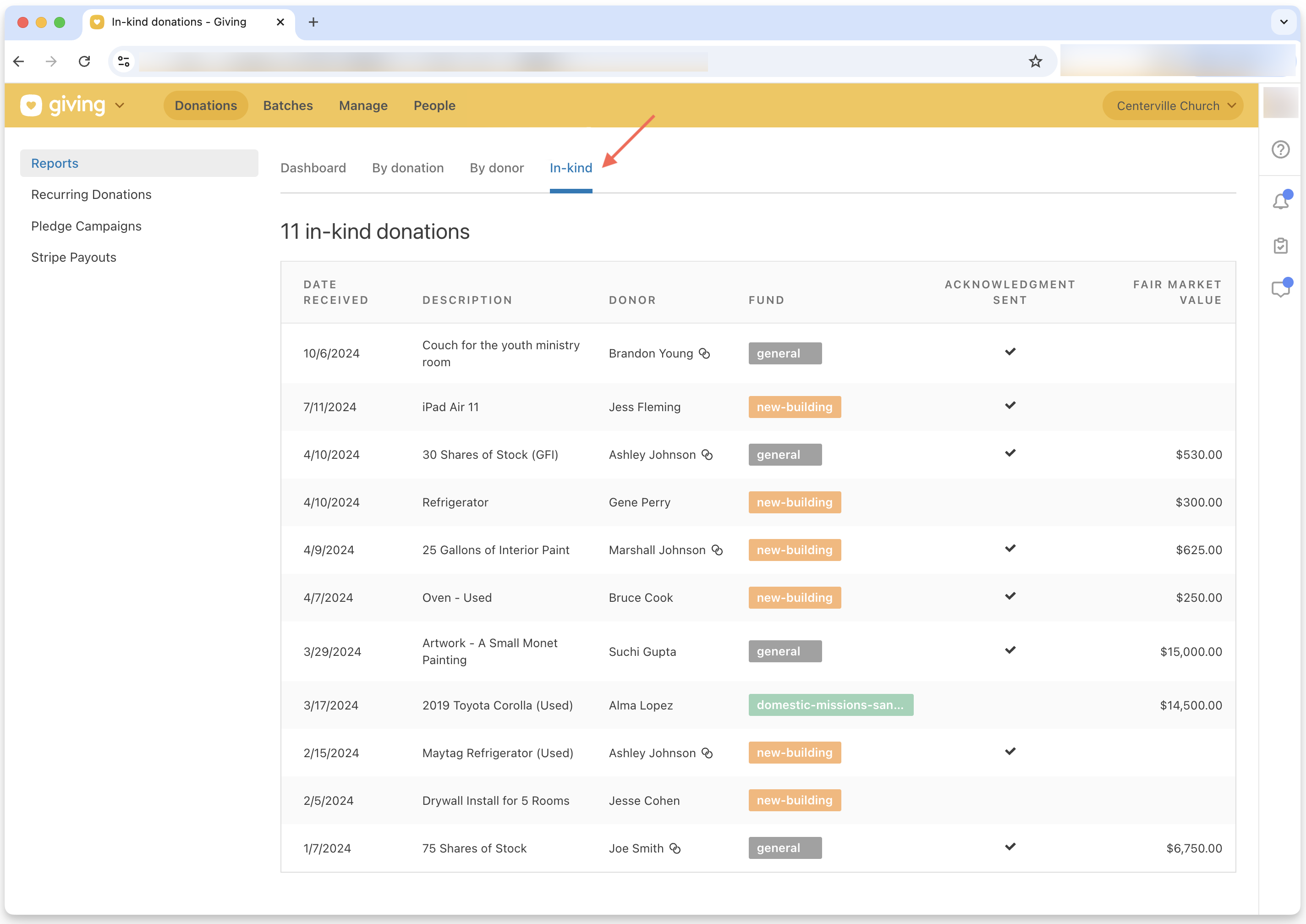
(Source: 🔗 PCO Giving: Viewing In-Kind Donations) 🚫 Liquidated noncash gifts aren't considered monetary donations.
Per federal tax law, donors are responsible for determining the Fair Market Value (FMV) and cost basis of noncash gifts for tax purposes.
We don't recommend sharing the liquidated value with donors, as it may not reflect the deductible FMV of the securities.
Why Do Batches from Overflow Say They Are Created by an Admin in PCO Instead of Overflow?
When transactions sync through Overflow’s integration with PCO, they will appear as if the authenticating admin created the batch. However, the source will be listed as Overflow.
🛠 If you prefer the batches to be labeled as created by Overflow, you’ll need to create an admin in PCO with the name (Overflow App), and then authenticate the integration using that profile.
Can I View Subcampaign Details of an Overflow Gift in PCO?
PCO does not support subcampaigns within the platform, so any subcampaign details that exist on an Overflow contribution will not appear in your PCO account. ❌
If you have multiple locations, we recommend setting up your Campaigns as:
First Location - Tithes
First Location - Legacy
Second Location - Tithes
Second Location - Legacy, etc.
How Are Anonymous Gifts Handled in PCO?
All anonymous donations sync to PCO, but how they appear depends on how the gift was given:
Online Donations
Donors can mark their gift as anonymous during the giving flow if they'd prefer not to be publicly acknowledged by your organization.
✅ Expected Behavior: Their full name and contact information will still sync to PCO.
The Anonymous setting affects public acknowledgment only, not the donor data itself.
Gift Entry
When entering a donation received without a name, you can select Mark as Anonymous Cash Donor to log the gift without creating a new Donor Profile.

✅ Expected Behavior: These donations sync to PCO using the Contact Email listed in your Dashboard settings.
💡 Tip: Keep this email address separate from any actual donor's PCO profile, so Anonymous gifts don't get mixed in with someone's personal giving history. (You can also set up a dedicated Donor Profile in Overflow instead, and attribute anonymous gifts there.)
What Happens if a Donor’s Account Was Merged After Their Gifts Synced?
Sometimes, donors’ accounts are merged in Planning Center after their gifts have already synced from Overflow. When this happens, their gifts may not automatically appear under the newly merged profile. ❌
To make sure all gifts are correctly assigned:
📝 Manually reassign gifts to the donor’s new profile in Planning Center.
✅ Keep your records accurate and ensure donors’ giving histories stay up-to-date.
Will Updates to a Donor (or Contribution) in PCO Sync to the Overflow Dashboard?
No. Overflow's PCO integration is one-way, meaning data will only move from Overflow to PCO and never the other way around.
PCO-origin gifts: The native integration does not automatically pull gifts entered in PCO into Overflow. If you need those gifts added to Overflow, open a new support ticket and provide a current PCO export file. Support can review the file and coordinate a manual import through the appropriate team. While using both platforms, submit the latest PCO export in a new support ticket each month if you need an interim recurring process. This is manual and support-assisted, not an automatic or guaranteed pipeline.
Recurring-gift status: The native integration does not pass a dedicated recurring flag into PCO. A separately configured external webhook workflow can receive lifecycle event notifications such as
recurring_gift.active,recurring_gift.inactive,recurring_gift.paused,recurring_gift.updated,recurring_gift.failed, andrecurring_gift.cycle_failed. These notifications go to a configured destination and do not automatically update PCO; a receiver and workflow must be configured separately.
How Do I Disconnect the PCO Integration?
In the Integrations module, go to the Planning Center tile.
Click See Details.
When the side panel opens, click Disconnect at the bottom. (The application will automatically be disconnected, and all data will cease to sync to your PCO account.)
Can gifts received before the PCO integration was connected be added?
Possibly. Contact Support if you need pre-connection gifts added. Support can review the gifts and may manually backfill them. These gifts are not part of the automatic future-sync behavior, are not listed in Failed Syncs, and are not guaranteed to be backfilled without review.
What if an Overflow Location has no matching PCO Campus?
For organizations using the Locations model, make sure the matching Campus exists in PCO and provide its Campus ID to Support. Support can complete the mapping and reconfigure or resync affected contributions. This issue and remedy apply to the Locations model only and do not explain every failed sync.