Receiving and acknowledging gifts of cash. All you need to know.
Last updated: September 9, 2026
Once you've set up credit/debit/ACH donations on your Overflow account, the gifts will start flooding in! Here's all you need to know about receiving and managing these donations.
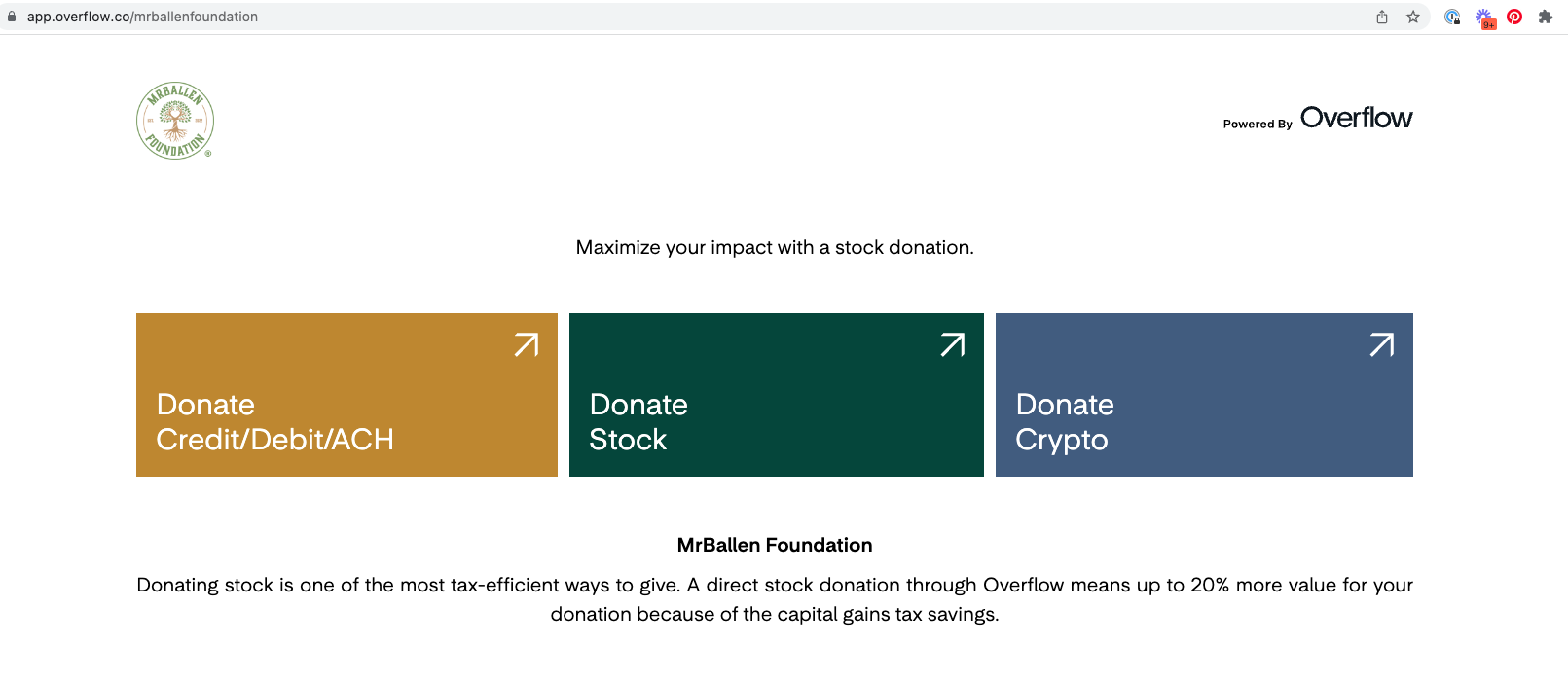
First things first: if you don't already have cash donation processing activated through Overflow, click here to learn how to set up this valuable giving channel for donors. You'll know you have cash activated if you see the Donate Credit/Debit/ACH button on your Overflow Homepage:
RECEIVING CASH DONATIONS
1) DONATION INITIATED:
Every cash donation that is made through the Overflow platform will appear in your Dashboard with the status 'Initiated'. You can view each donation in the Contributions tab and use the filters to search for cash donations only.
2) PROCESSING COMPLETE
When a cash donation is processed and deposited, the status of that donation will change to 'Confirmed'. You can view the timeline of the gift and more information in the donation details window by clicking on the transaction.
3) DONATION DEPOSITED
Cash donations will be grouped together based on when they are received and deposited in a batch to your bank account on a regular cadence. You can learn more about cash batch deposits here.
ACKNOWLEDGING GIFTS OF CASH
NOTE: The IRS requires that a donor be able to present an acknowledgment letter for any cash donation they claim as a charitable deduction on their taxes that is over $250. Therefore, we recommend sending acknowledgment letters to donors who have contributed a single gift in value of over $250 to your organization.
TRIGGER EVENT:
The cash contribution status is changed to 'Completed' within your Dashboard.
STEP BY STEP:
1) Log in to your Dashboard
Unlike donations of stock, cash gifts do not require confirmation of receipt. As soon as the cash donation is complete, an acknowledgment letter is immediately generated and available to send.
2) Navigate to the Contributions tab
Find the transaction you wish to confirm by navigating to the Contributions tab and scrolling or searching by name in the Search bar. Click anywhere on the gift to open the donation details window.
3) Send the acknowledgment letter
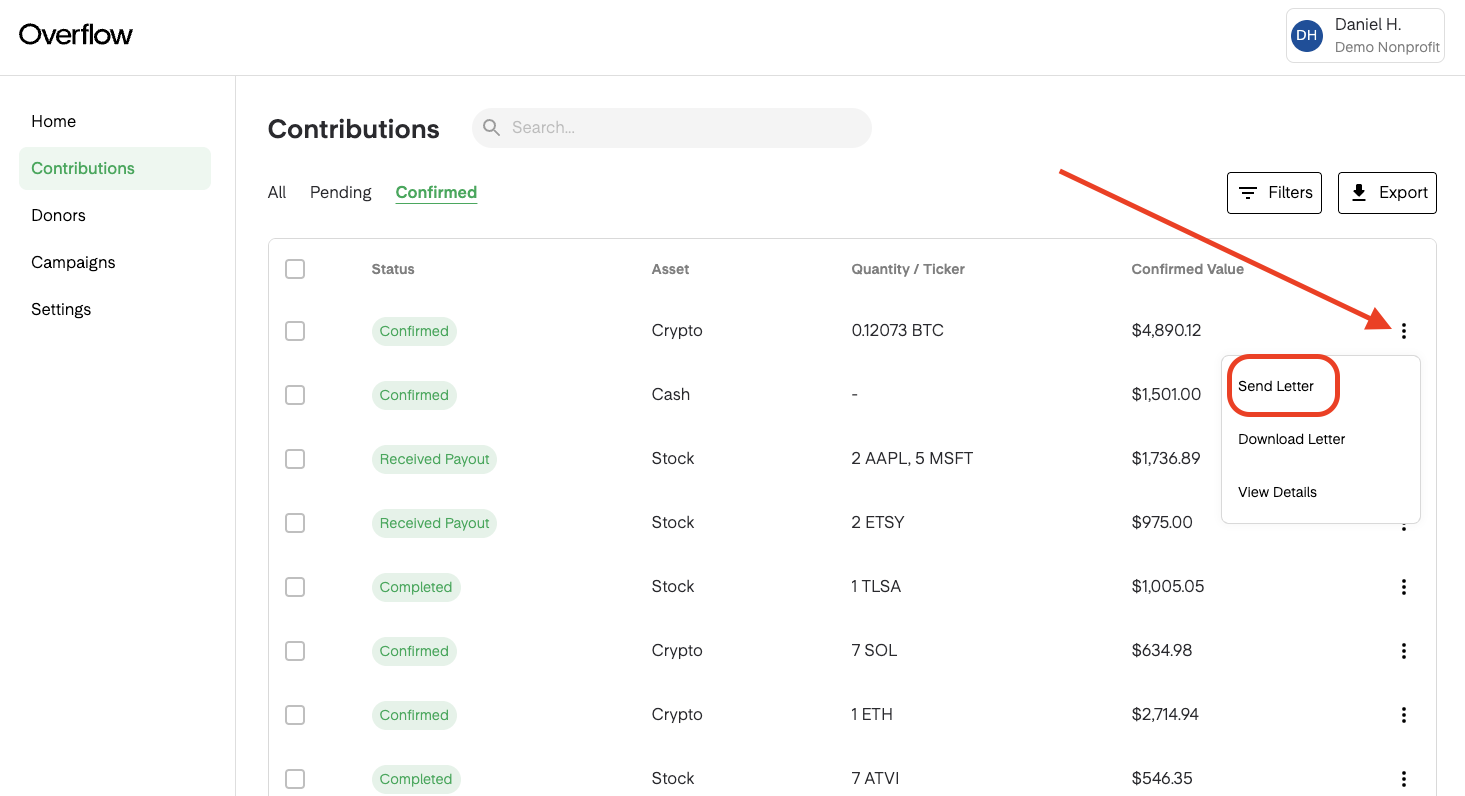
In the contribution details window, you'll see a green button prompting you to "Send Acknowledgment Letter". This will immediately trigger an email from the Overflow platform to your donor with the acknowledgment letter attached. If you prefer to send the letter from your own email alias, you can do so by navigating to the Contributions tab, scrolling to the right of the gift item, and clicking on the ellipsis. From there, you'll see the option to download the acknowledgment letter as a PDF to send from your own email alias.
- ⚠️ ⚠️ We recommend downloading every acknowledgment letter and saving it to a specified folder EVEN IF you send the letters directly from your Dashboard.
Overflow does not provide tax, legal, compliance, or accounting advice. This material has been prepared for informational purposes only, and is not intended to provide, and should not be relied on for, tax, legal, compliance, or accounting advice. Your organization should consult its own tax, legal, compliance, and accounting advisors before sending or concluding any transaction, communication, or otherwise.
Related Articles
Understanding cash batch deposit schedules
View and Track Recurring Gifts in Your Dashboard
IRS Requirement: Charitable Acknowledgement Letter
Customize Your Acknowledgment Letter. A Quick How-to
Confirm Receipt of Stock Gifts. Brokerage Clients