Create and Manage Giving Links
Last updated: November 7, 2026
Giving Links let you create custom donation experiences for your donors. By pre-setting campaign details, gift amounts, and recurring options, you can make giving simple, clear, and aligned with your fundraising goals.
Create a New Giving Link
Go to Giving Links in your Dashboard.
Click the Create Link button in the top-right corner.

Enter a name for your link. This will help you identify it later, and it will also appear in the URL.
Select one from the Donor Flow Type dropdown menu:
💵 Cash Flow for ACH, debit/credit, and digital wallet donations. (🔗 Accepted Payment Methods)
📲 Express Flow for ExpressGive (Apple Pay and Google Pay only).
Customize the rest of the giving experience for your donors.
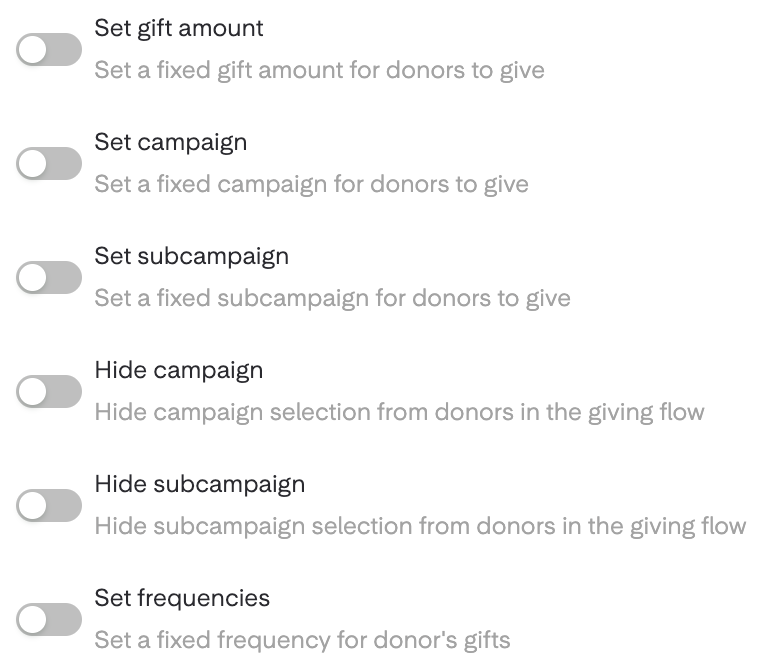
👉🏽 Note: If a campaign has a linked subcampaign, you'll want to disable the "Require Subcampaigns" setting in your Dashboard, unless a subcampaign is already pre-selected in your Giving Link configuration.
Alternatively, you can default the subcampaign in your Giving Link settings and hide it from the giving experience.
When you’re finished, click Generate Link to create your Giving Link.
Share the Giving Link by copying the URL or downloading the QR code!
Managing Giving Links
Editing a Giving Link
You can update a Giving Link anytime by clicking the ellipses (⋯) in the Giving Links module, or by selecting Actions > Edit within a specific campaign. From there, you can adjust details such as the default gift amount, fund designations, and gift frequency.
Archiving a Giving Link
You can delete a Giving Link anytime by clicking the ellipses (⋯) in the Giving Links module, or by selecting Actions > Archive within a specific campaign.
❌ Archiving a Giving Link will remove it from your Dashboard, as well as disable its URL/QR code. (This action is permanent and cannot be undone.)
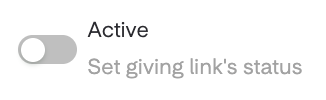
⏸ To deactivate a Giving Link without deleting it, simply edit the link and switch its status to Inactive.
Note: When a Giving Link is marked as inactive, the link itself remains accessible. However, donors clicking the link won’t see your default giving settings.
🔄 Instead, they’ll be redirected to a cash giving flow that mirrors your organization’s donation page.
Analytics
Access analytics for a specific campaign from the Giving Links module. You’ll be able to track key performance metrics, including:
Total Contribution Value
Contribution Trends Over Time
Top Donors
Conversion Rates
FAQs
Can I Create a Giving link for Stock, Crypto, or DAF Gifts?
💵 Giving Links currently work with cash donations only (ACH, debit/credit, and digital wallets). We’re working on adding noncash links in the future!
Can I Use My Giving Link to Track How Many Taps Convert to Gifts?
✅ Yes! You can track the source of your donations and see which gifts came from your Tap discs. Just 2 quick steps:
Add a tracking tag to your Giving Link. Open the Giving Link connected to your Tap devices and add
&utm_source=overflow_tapto the end of the URL. (Copy and paste it exactly as shown.)Filter the Contributions table. In the filter options, set Source = Tap. You'll see every gift that came in through your Tap discs.