People Module and Pre-Configured Reports
Last updated: September 24, 2026
This guide will walk you through the People module in the Dashboard, allowing you to view individual donor profiles, analyze their giving patterns, and export donor groupings for your organization’s needs.
Accessing the People Module
Once you have logged into your Dashboard, navigate to the People module in the left sidebar.
Donor Overview
Donor Name
Giving Total — Sort donations in descending order
Stage — Also known as "development stage"
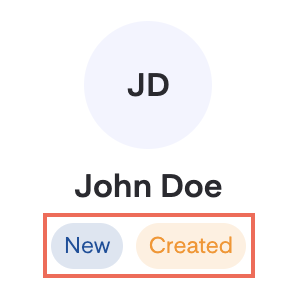
🔵 New — Donated at least 1 gift within the last 30 days (no prior giving history) or refers to the creation of a new Donor Profile, including those added through the Gift Entry.
🟢 Active — Donated within the last 90 days (current givers)
🔴 At Risk — Haven't donated within 90–120 days
🟠 Lapsed — Haven't donated for over 120 days
Total Number of Gifts
Contact Information
Viewing Individual Donor Profiles
To view a specific donor’s profile, simply click on a donor's name. Here, you can see:
A complete list of contributions (and any pledges, if any)
Donor statistics
Donor's full contact information (email, phone number, and address)
Editing Donor Information
While you can't edit most Donor Profiles, you can:
Update the Mailing Address — Using the search bar or adding it manually
Add Tags — For better donor segmentation and future analysis (e.g., tagging "Kingdom Builder" donors).
Filters and Exports
Filtering Donors for Group Analysis
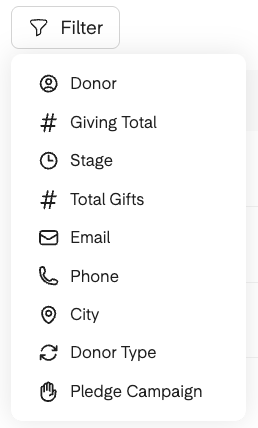
If you’re preparing for an event, like a gala, and need to identify high-value donors, you can use the Filter button (located in the top-left corner).
Here, you can filter donors by:
Giving Total — Set a minimum amount (e.g., over $10,000)
Stage — Please refer to the development stages.
Total Gifts — Specify the number of gifts (e.g., at least 10 gifts)
City — Ideal if your event is held in-person
Click Apply after each filter to view the relevant donor list. Some filters include their own search bar in the dropdown menu!
Exporting Donor Data
To export filtered donor data:
Click on the Export button (located in the top-right corner).
Choose between exporting All Filtered Rows or All Rows.
The CSV file will be downloaded to your device once it is ready.
Donor Development Report
For a broader donor analysis, we recommend utilizing the pre-configured reports.
Navigate to the Reporting module
Click on the Donor Development pre-configured report, which provides high-level statistics, based on today's date.
Stages — 🔵 New, 🟢 Active, 🔴 At Risk, and 🟠 Lapsed donors
Brokerage Value — Donors' total stock value linked to your organization (via Yodlee's brokerage connection).
Brokerage Accounts — Total number of connected donor brokerage accounts
This information is essential for fundraising and understanding donor behavior, particularly when determining the amount you want to request.
Visual Data Analysis
The Donor Development report includes charts and tables that break down:
Development Stage — Percentage is displayed when hovering over slices
Gift Count by Amount — Quantity is displayed when hovering over bars
Donor Stages — 🔵 New, 🟢 Active, 🔴 At Risk, and 🟠 Lapsed
Donor Name
Giving Total
Number of Gifts
Value of Their Last Gift
Giver Duration (Length of Donor Relationship)
Breakdown of Donor Development (by Amount)
Donors that Covered the Fees — Percentage is displayed on the bar graph, if you have this feature turned on.
Top Donors
Total Amount of Fees Covered
Total Contribution Value
Donor Breakdown (by Tags) — Segmented by Donor Count and Giving Total
Top 50 Givers — 📥 You can also export this report directly!
Donor Name
Giving Total
Number of Gifts
Average Gift Amount
Giver Duration (Length of Donor Relationship)