[Beta] New Dashboard Roles and Permissions
Last updated: October 27, 2026
Roles make it easy to give each person on your team just the right tools to do their best work. Every user on your Dashboard has a role that shapes which modules they can use and, for some roles, which Locations (campuses) they can see.
How Roles Work
A role is a ready-made set of access designed around a common job on your team. Pick the one that fits the user’s job, and the right access comes along with it. You won’t have to manually set up permissions, so getting started is quick and easy!
One role per person. Choose the one that best matches their primary responsibilities.
Campus-focused access. Location Admins see the Locations you assign them. Finance and Volunteer users can see all Locations or just assigned ones, and you choose this for each person. (See below for the Tap Only role.)
Organization-wide settings stay in trusted hands. Funds, payouts and bank accounts, integrations, branding, and developer settings apply to every campus, so Organization Admins manage them. This keeps changes consistent across your whole organization.
Invites are easy. Organization Admins can invite users and assign roles.
Everyone needs a role to log in. Be sure each user is properly assigned a role before they sign in.
Invite Users and Assigning Roles
New Users
Organization Admins can follow these steps:
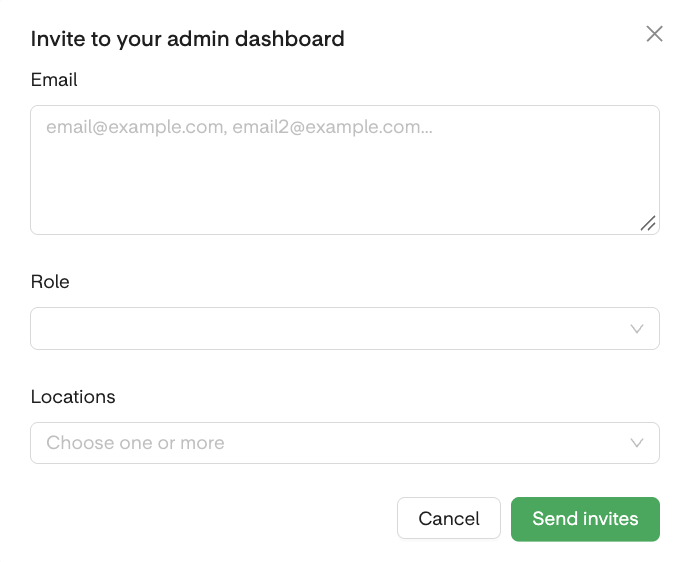
Invite your Teammates: Open your Dashboard settings, go to the Users tab, and click Invite. Then enter each email address, separated by a comma.

Assign a Role: Choose the role that best fits their job. If you’re inviting several people at once, they’ll all receive the same role, so group together the teammates who need the same access.
Scope the Role by Location (optional): If your teammates should only see certain Locations, limit their access to those. (Example: Campus Pastors are typically given the Location Admin role scoped to their campus.)
Send the Invitations. Once everything looks right, send the invites to finish.
Existing Users
Organization Admins can update a user's role or Locations at any time. Simply click the ellipsis (⋯) next to their name, select Edit, and make your changes.
Choosing a Role
Organization Admin
At a Glance: Full access to the Dashboard, so you can set up your organization and keep it running smoothly.
Get a complete view of giving, reporting, recurring gifts, pledges, donor statements, and donor tools across every Location.
Invite teammates and assign their roles, so everyone starts with the right access.
Create campaigns, edit funds, and manage integrations, organization settings, financial accounts, and branding in one place.
Best For: Founders, Executive Directors, Finance Directors, Operations Leads, and whoever manages your Overflow account.
Location Admin
At a Glance: A clear view of their own Location, with the tools to care for it.
Keep up with giving, reporting, recurring gifts, pledges, and donor tools for their assigned Locations.
Enter gifts and manage Giving Links, so they can support their community without waiting on anyone else.
View campaigns and funds to stay in the loop on what’s happening across the organization.
A few organization-wide areas, like statements and reconciliation, stay with other roles to keep things consistent.
Best For: Campus Pastors, Campus Leaders, and Campus Staff.
Finance
At a Glance: The tools to keep your numbers in order.
Review giving, reporting, recurring gifts, pledges, and donor tools, and enter offline gifts when needed.
Reconcile and work with payouts to keep your books accurate.
Use Overflow AI and data imports to save time on everyday finance work.
Work across all Locations or just assigned ones, depending on how you set up each person.
Best For: Bookkeepers, Treasurers, Accountants, and Finance Staff.
Developer
At a Glance: Direct access to build and connect, with donor data kept private.
Work in the Developer module, including API keys, authentication, and webhooks, to connect Overflow to your other tools.
Do it all without seeing giving or donor data, which stays private.
Best For: IT Staff, Technical Staff, and Engineers connecting Overflow to other systems.
Volunteer
At a Glance: Simple, focused access for helping with gift entry.
Enter offline donations using the Gift Entry tool and Virtual Terminal.
See basic people information and view campaigns to make gift entry easier.
Work across all Locations or just assigned ones, depending on how you set up each person.
Best For: Volunteers helping with gift entry, such as counting teams entering physical cash and check gifts.
Tap Only
At a Glance: Everything needed to run Tap devices smoothly at services and events.
Manage your Tap groups, destinations, and devices with ease.
Run Tap at every Location, since access applies across your whole organization.
Best For: Staff and volunteers who only manage Overflow Tap.
Permissions at a Glance
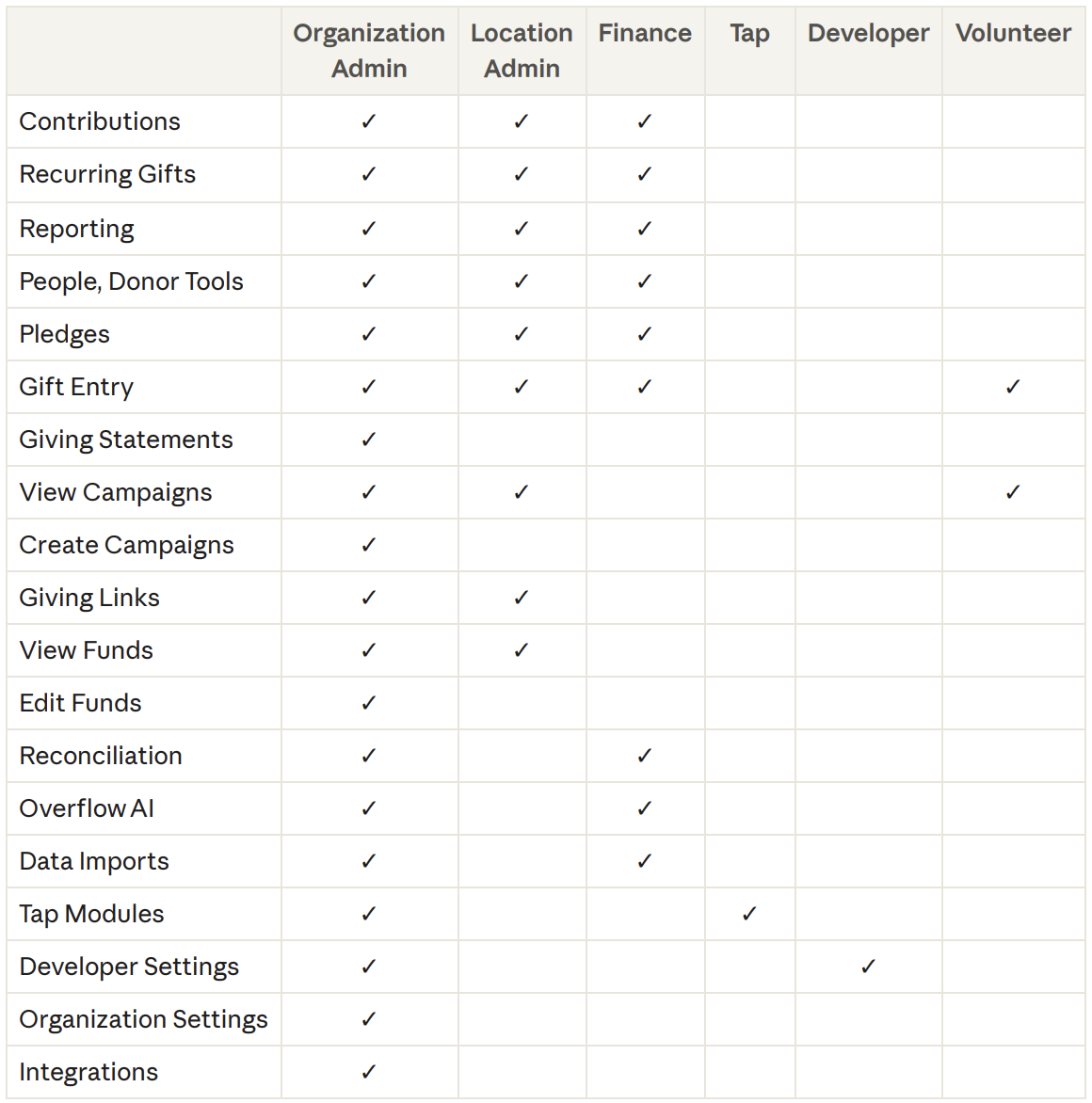
Note: Location Admins see data for their assigned Locations only. Finance and Volunteer access can be limited by Location, too.
FAQs
Who Can Invite New Users?
Organization Admins. If you need to add a teammate and don’t see the option, just ask an Organization Admin on your team to send the invite.
Can Users Have More Than One Role?
Each person has one role. If someone needs a mix of access, choose the role that covers the most important part of their work, or reach out to your CSM to help find the right fit.
Can I Customize What a Role Can Do?
Not today. Roles are predefined, so you can assign the right access quickly and safely. Just pick the role that most closely matches the user's job!
Can One User Cover More Than One Campus?
Yes! When you scope a role by Location, you can assign the user to more than one campus. Their access will apply across every Location you select.
Why Can’t a Location Admin Manage Funds or Bank Accounts?
Those settings apply to your whole organization, so a change there affects every campus. Keeping them with Organization Admins helps everything stay consistent and secure.
Does the Tap Role Only Apply to One Campus?
No. The Tap modules aren't scoped by Location today, so a Tap Only user has access across your whole organization.