Managing Non-Deductible Contributions
Last updated: September 25, 2026
This guide walks you through everything you need to know about setting up and tracking non-deductible campaigns in the Dashboard. Keep your contribution records accurate and your donor statements in great shape!
What This Feature Does
The non-deductible feature allows organizations to distinguish between deductible and non-deductible contributions directly within the Dashboard. Common examples include event tickets and merchandise purchases. 🎟
What You Can Expect
Accurate, well-organized contribution records
Cleaner accounting workflows for your team
Non-deductible contributions automatically excluded from giving statements
Setting Campaign Deductibility
When creating a new campaign, you can assign a default tax deductibility status:
🟢 Deductible (Default): Donors can claim contributions as tax deductions.
🟡 Non-Deductible: Donors cannot claim contributions as tax deductions.
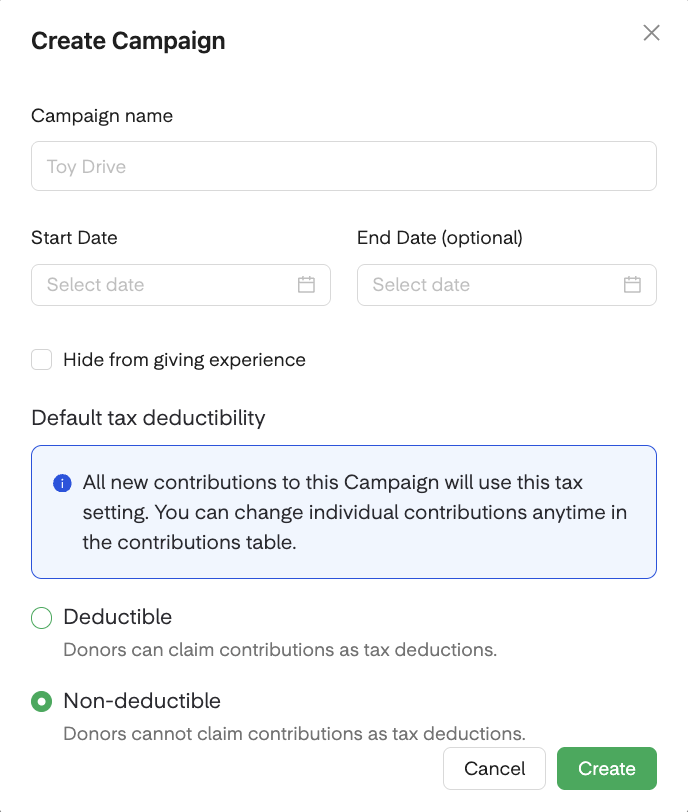
Status Inheritance
When a contribution is created, it automatically inherits the deductibility status of the campaign it belongs to. This applies whether the contribution is received through the online donation flow or entered manually through the Gift Entry tool.
🔄 Donor Flow: Status is set automatically based on the campaign selected. (Donors cannot change it themselves.)
✏ Status Override (Uncommon): Admins can manually override the status on any individual donation in the Contributions table or in a Gift Entry batch, regardless of the campaign default's setting.
Editing Deductibility Status
Need to update a contribution's deductibility status? You can edit it directly from the Contributions table.
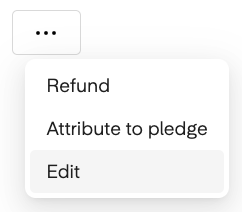
Single Contribution
Select any individual donation to open the side drawer. Click the ellipsis (⋯), select Edit from the dropdown menu, and update the Tax Deductibility field.
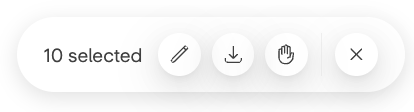
Bulk Contributions
Select all applicable donations on the page, then press the Edit button (✏) from the bottom menu. From there, update the Tax Deductibility field as needed.
Note: When editing in bulk, any changes made to the Campaign, Subcampaign, and Tax Deductibility fields will apply to all selected contributions.
Viewing Deductibility Status
The deductibility status of each contribution is visible in 2 places.
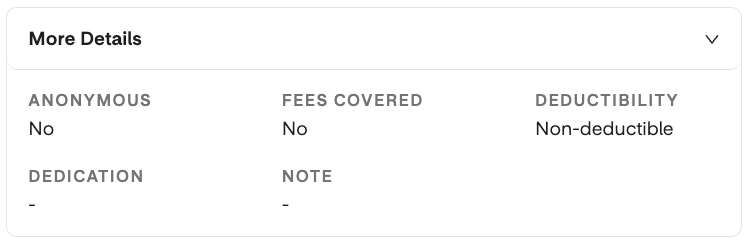
Contributions Drawer
In the Dashboard, click any donation in the Contributions table to open the side drawer, where the deductibility status is displayed alongside other gift details.
Contributions Module
In the Donor Profile, a Tax Deductibility column displays the status (deductible or non-deductible) for each donation.

Filtering and Analyzing Contributions
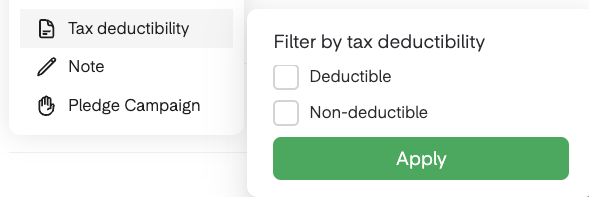
You can filter contributions by deductibility status for reporting, auditing, or reconciliation.
In your Dashboard, go to the Contributions module.
Click Filter, located on the top of the Contributions table.
Select Deductibility from the dropdown, then choose Deductible or Non-Deductible.
Automated Statements Handling
Overflow handles deductibility automatically at year-end, so your giving statements are always accurate.
🚫 Automatic Exclusion: Contributions marked as non-deductible are automatically excluded from giving statements. No manual cleanup needed!
📊 Seamless Reporting: When generating statements, the platform only totals deductible contributions.
✅ Accurate Records: Only eligible deductible contributions are included on giving statements, keeping your records clean and consistent.
Take Action
Once you've filtered your contributions, here's what you can do next:
🔍 Review Individual Gifts: Click any contribution for a detailed breakdown, including the campaign it was attributed to.
📥 Export: Export your filtered data for internal accounting or reconciliation.
🔖 Save a Report: Save your filter configuration as a named report and find it anytime in the Reporting module.
FAQs
How Does Deductibility Work in the Gift Entry Tool?
The deductible status is set automatically based on the campaign selected, not the contribution type chosen in the Gift Entry tool. (This works the same way as online gifts!)
DAF gifts should always be marked as non-deductible, regardless of the campaign selection.